

There are situations when automating the keyboard in Selenium WebDriver is necessary, for instance simulating holding certain keys down.
This feature comes in very handy for automation purposes such as simulating a series of button presses or using keyboard shortcuts like Ctrl + C to copy something or Shift to highlight a number of items. Selenium has so many ways to perform the key presses including use of Actions class in the test.
Table of Content
Prerequisites
To use the techniques shown in this article, make sure you have the following:
- Java Development Kit (JDK) installed
- Selenium WebDriver configured in your project
- Browser Driver ChromeDriver, GeckoDriver Install the appropriate WebDriver
- Using an IDE like intellij ide or other is fine to run your Selenium scripts.
Holding Down Keys in Selenium
To simulate holding down a key with Selenium, you can use the keyDown() method provided by the Actions class. This method takes a Keys value (such as Keys.SHIFT, Keys.CONTROL, etc.) as an argument and simulates the press and hold of that key.
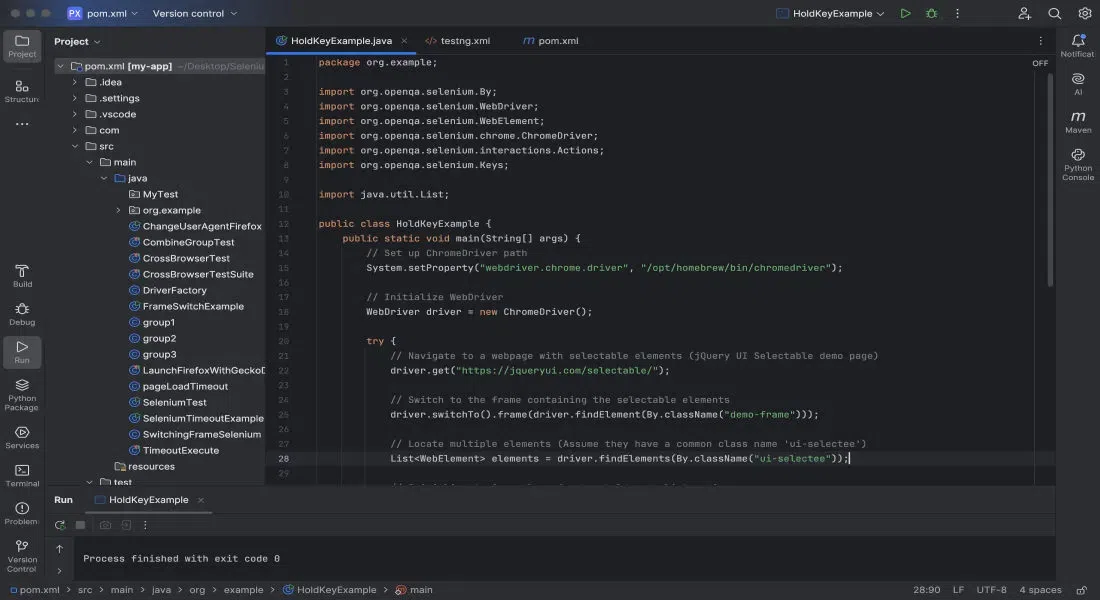
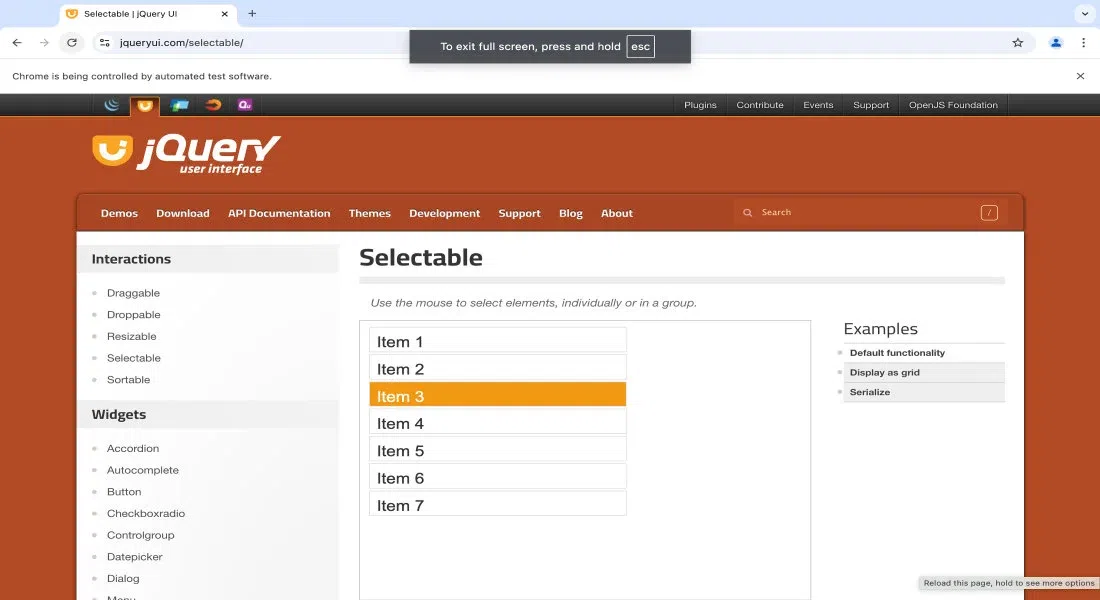
Here's an example where we demonstrate holding down the Shift key while clicking on multiple elements to select them.
package org.example;

import org.openqa.selenium.By;
import org.openqa.selenium.WebDriver;
import org.openqa.selenium.WebElement;
import org.openqa.selenium.chrome.ChromeDriver;
import org.openqa.selenium.interactions.Actions;
import org.openqa.selenium.Keys;

import java.util.List;

public class HoldKeyExample {
    public static void main(String[] args) {
        // Set up ChromeDriver path
        System.setProperty("webdriver.chrome.driver", "<path_to_chromedriver>");// change the Path as per the path of webdriver in the location of local storage

        // Initialize WebDriver
        WebDriver driver = new ChromeDriver();

        try {
            // Navigate to a webpage with selectable elements (jQuery UI Selectable demo page)
            driver.get("https://jqueryui.com/selectable/");

            // Switch to the frame containing the selectable elements
            driver.switchTo().frame(driver.findElement(By.className("demo-frame")));

            // Locate multiple elements (Assume they have a common class name 'ui-selectee')
            List<WebElement> elements = driver.findElements(By.className("ui-selectee"));

            // Initialize Actions class for key-hold and click actions
            Actions actions = new Actions(driver);

            // Hold down the SHIFT key and click on multiple elements to select them
            actions.keyDown(Keys.SHIFT)
                    .click(elements.get(0)) // Select first element
                    .click(elements.get(1)) // Select second element
                    .click(elements.get(2)) // Select third element
                    .keyUp(Keys.SHIFT)      // Release the SHIFT key
                    .perform();

            // Optional: pause to visually confirm the selection
            Thread.sleep(2000);

        } catch (Exception e) {
            e.printStackTrace();
        } finally {
            // Close the browser
            driver.quit();
        }
    }
}
Explanation
- keyDown(Keys.SHIFT): This method simulates pressing the Shift key.
- .click(element1) and .click(element2): These methods simulate clicking on the web elements while the Shift key is held down.
- keyUp(Keys.SHIFT): This releases the Shift key after the selection.
This approach can be modified to hold down any other key (like Ctrl or Alt) by passing the appropriate constant from the Keys class.
Use Cases
- While Selecting Multiple Elements: In a case where you want to select a number of elements simultaneously, for instance when you need to select files in a filing manager context, press Ctrl or Shift and then click the element you want to select without losing any previous selections.
- Keyboard Shortcuts: Another feature is the Keyboard shortcuts where you will need to hold certain keys like how you use Ctrl + S to save a file or Ctrl + P to print documents.
Conclusion
Simulating hold key down with Selenium with holds in WebDriver using the Actions class is also a straightforward technique. This is very applicable for automation which requires a range of floor controls such as multi-item selection or activating a range of shortcuts.
Generally, this is done with the help of keyDown() and keyUp() to simulate a real user action.