

The Action class handles advanced user interactions in Selenium, like mouse movements, keyboard inputs, and context-click (right-click) actions. It provides more control and flexibility in automated testing, allowing you to simulate complex user actions that can't be achieved with basic WebDriver commands. This enhances the accuracy of testing, making it possible to perform real-world user behavior more precisely.
The Action class has many methods for different actions like:
- click(WebElement element): The click() function is for clicking on a web element. The purpose of this technique is to mimic a left click on a designated web element. It is frequently used to interact with clickable items like checkboxes, buttons, and links.
- doubleClick(WebElement element): doubleClick() helps do a double click on a web element. A specific web element can be double-clicked using the DoubleClick technique. It is frequently employed in situations when a double click is necessary to start a process or event.
- contextClick(WebElement element): contextClick() lets you right-click on a web element. This technique mimics a context-click, or right-click, on a designated web element. It comes in useful when engaging with context menus and initiating right-click operations.
- moveToElement(WebElement element): moveToElement() moves the mouse pointer to the middle of a web element. The mouse pointer is moved to the center of the designated web element using the moveToElement function. Hovering over components that display hidden options or activate dropdown menus is typical usage for it.
- dragAndDrop(WebElement source, WebElement target): dragAndDrop() allows dragging one element and dropping it onto another. By dragging an element from its present place and dropping it onto another element, you can execute a drag-and-drop operation using this approach. It can be used to simulate user operations like rearranging objects or transferring components between containers.
Examples of Action Class in Selenium
Here is an Example of an Action Class in Selenium:
1. Perform a Click Action on the Web Element
package Actions;

import java.time.Duration;

import org.openqa.selenium.By;
import org.openqa.selenium.WebDriver;
import org.openqa.selenium.WebElement;
import org.openqa.selenium.chrome.ChromeDriver;
import org.openqa.selenium.chrome.ChromeOptions;
import org.openqa.selenium.interactions.Actions;
import org.openqa.selenium.support.ui.ExpectedConditions;
import org.openqa.selenium.support.ui.WebDriverWait;

public class ClickActionTest {
    public static void main(String[] args) {
        // Set the path to the ChromeDriver executable (make sure to replace with your actual path)
        System.setProperty("webdriver.chrome.driver", "C:\\path of chromedriver\\chromedriver.exe");

        ChromeOptions options = new ChromeOptions();
        options.addArguments("--no-sandbox", "--disable-dev-shm-usage");
        WebDriver driver = new ChromeDriver(options);

        try {
            // Navigate to Saucedemo and login
            driver.get("https://www.saucedemo.com/");
            driver.manage().window().maximize();
            driver.manage().timeouts().implicitlyWait(Duration.ofSeconds(5));
            driver.findElement(By.id("user-name")).sendKeys("standard_user");
            driver.findElement(By.id("password")).sendKeys("secret_sauce");
            driver.findElement(By.id("login-button")).click();

            // Perform click action on "Add to Cart" button
            WebElement addToCartButton = driver.findElement(By.id("add-to-cart-sauce-labs-backpack"));
            Actions actions = new Actions(driver);
            actions.click(addToCartButton).build().perform();
            System.out.println("Clicked 'Add to Cart' button.");

            // Explicit wait for cart badge to be visible
            WebDriverWait wait = new WebDriverWait(driver, Duration.ofSeconds(10));
            WebElement cartBadge = wait.until(ExpectedConditions.visibilityOfElementLocated(By.className("shopping_cart_badge")));
            System.out.println("Cart items: " + cartBadge.getText());

            // Optional: wait to observe result before closing
            Thread.sleep(2000); // Pause to observe
        } catch (Exception e) {
            System.err.println("Error: " + e.getMessage());
        } finally {
            driver.quit();
        }
    }
}
Output:

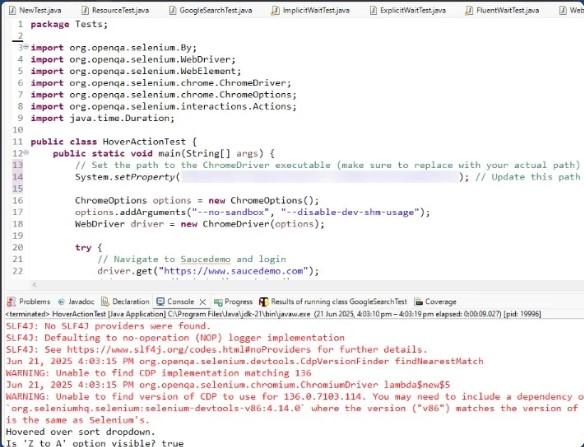
2. Perform Mouse Hover Action on the Web Element
package Tests;

import org.openqa.selenium.By;
import org.openqa.selenium.WebDriver;
import org.openqa.selenium.WebElement;
import org.openqa.selenium.chrome.ChromeDriver;
import org.openqa.selenium.chrome.ChromeOptions;
import org.openqa.selenium.interactions.Actions;
import java.time.Duration;

public class HoverActionTest {
    public static void main(String[] args) {
        // Set the path to the ChromeDriver executable (make sure to replace with your actual path)
        System.setProperty("webdriver.chrome.driver", "/path/to/chromedriver"); // Update this path

        ChromeOptions options = new ChromeOptions();
        options.addArguments("--no-sandbox", "--disable-dev-shm-usage");
        WebDriver driver = new ChromeDriver(options);

        try {
            // Navigate to Saucedemo and login
            driver.get("https://www.saucedemo.com/");
            driver.manage().window().maximize();
            driver.manage().timeouts().implicitlyWait(Duration.ofSeconds(5));
            driver.findElement(By.id("user-name")).sendKeys("standard_user");
            driver.findElement(By.id("password")).sendKeys("secret_sauce");
            driver.findElement(By.id("login-button")).click();

            // Perform hover action on sort dropdown
            WebElement sortDropdown = driver.findElement(By.className("product_sort_container"));
            Actions actions = new Actions(driver);
            actions.moveToElement(sortDropdown).build().perform();
            System.out.println("Hovered over sort dropdown.");

            // Verify dropdown is active (check if options are visible)
            WebElement option = driver.findElement(By.cssSelector("option[value='za']"));
            System.out.println("Is 'Z to A' option visible? " + option.isDisplayed());

            Thread.sleep(2000); // Pause to observe
        } catch (Exception e) {
            System.err.println("Error: " + e.getMessage());
        } finally {
            driver.quit();
        }
    }
}
Output:
3. Perform Double Click Action on the Web Element
package Tests;

import org.openqa.selenium.By;
import org.openqa.selenium.WebDriver;
import org.openqa.selenium.WebElement;
import org.openqa.selenium.chrome.ChromeDriver;
import org.openqa.selenium.chrome.ChromeOptions;
import org.openqa.selenium.interactions.Actions;
import org.openqa.selenium.support.ui.ExpectedConditions;
import org.openqa.selenium.support.ui.WebDriverWait;

import java.time.Duration;

public class DoubleClickActionTest {
    public static void main(String[] args) {
        // Set the path to ChromeDriver (make sure to update this with the correct path)
        System.setProperty("webdriver.chrome.driver", "C:/path/to/chromedriver"); // Update this path accordingly

        // Set Chrome options
        ChromeOptions options = new ChromeOptions();
        options.addArguments("--no-sandbox", "--disable-dev-shm-usage");

        // Create a new ChromeDriver instance
        WebDriver driver = new ChromeDriver(options);

        try {
            // Navigate to Saucedemo and login
            driver.get("https://www.saucedemo.com/");
            driver.manage().window().maximize();

            // Use WebDriverWait to wait for the elements to be visible
            WebDriverWait wait = new WebDriverWait(driver, Duration.ofSeconds(10));

            // Wait for the login fields and perform login
            WebElement usernameField = wait.until(ExpectedConditions.visibilityOfElementLocated(By.id("user-name")));
            usernameField.sendKeys("standard_user");

            WebElement passwordField = driver.findElement(By.id("password"));
            passwordField.sendKeys("secret_sauce");

            WebElement loginButton = driver.findElement(By.id("login-button"));
            loginButton.click();

            // Wait for the product name to be visible and interactable
            WebElement productName = wait.until(ExpectedConditions.visibilityOfElementLocated(By.className("inventory_item_name")));

            // Perform double-click on product name
            Actions actions = new Actions(driver);
            actions.doubleClick(productName).build().perform();
            System.out.println("Double-clicked product name: " + productName.getText());

        } catch (Exception e) {
            System.err.println("Error: " + e.getMessage());
        } finally {
            // Always quit the driver after the test is finished
            driver.quit();
        }
    }
}
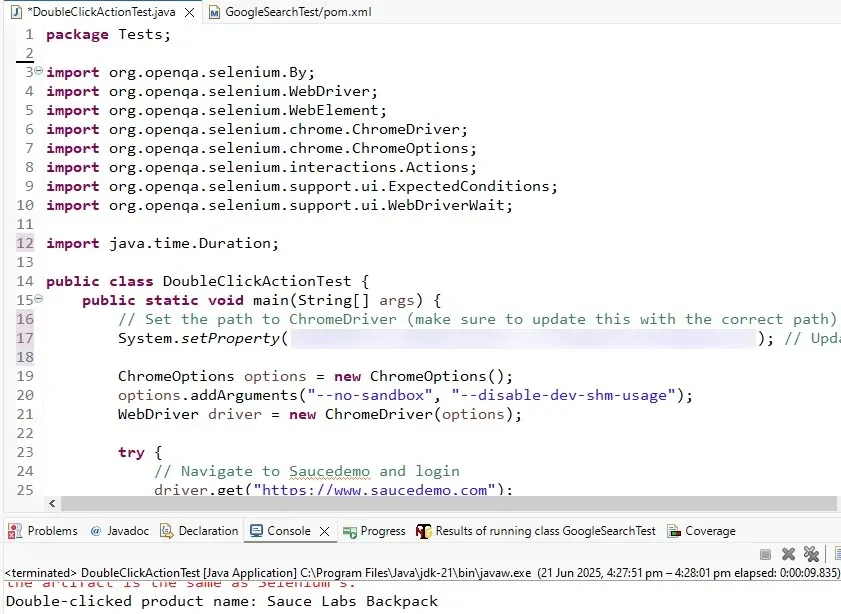
Output:
The Action class in Selenium is useful to make your automated tests act like real people using websites, such as clicking, scrolling, and double-tapping. By replicating these complex user actions, you can ensure that websites function correctly, regardless of how users interact with them. This makes your tests more effective at detecting bugs and issues.