

Trying to make your document more structured and readable? Adding a numbered list in Google Docs is one of the quickest ways to present steps, tasks, or ranked items clearly. Whether you're organizing project deliverables, creating to-do lists, or formatting an outline, numbered lists make your content easier to follow.
In this guide, we will show you how to add a numbered list in Google Docs, both on desktop and mobile devices so that you can present your information in an orderly manner.
Disclaimer: Always verify document formatting when working in collaboration mode. Shared documents may override or modify list styles based on editing permissions or format conflicts.

How to Add a Numbered List in Google Docs (Desktop)
Here’s the easiest way to insert a numbered list into your Google Docs file using built-in tools:
Step 1: Open Google Docs
First, go to your Google Docs and open the document where you want to add a numbered list.

Step 2: Click Where You Want the List
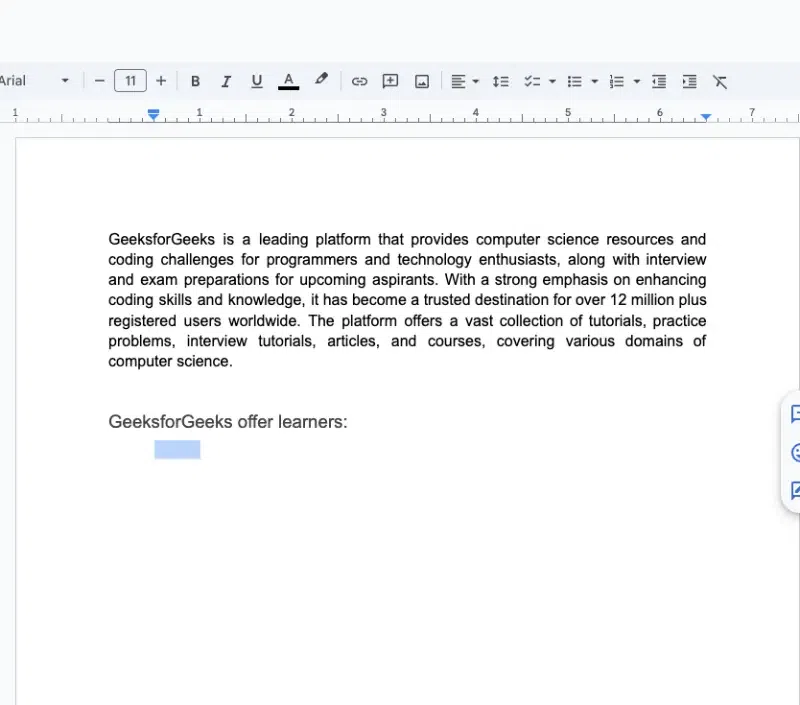
Click in the area where you want to start your numbered list.
Step 3: Select the Numbered List Icon
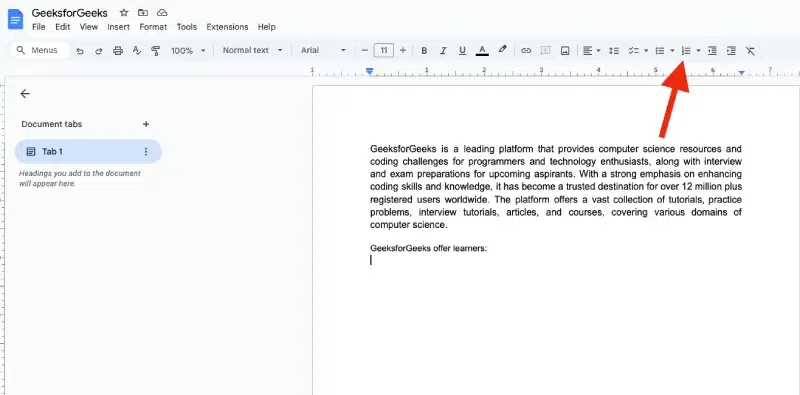
In the toolbar at the top of your screen, you’ll see a numbered list icon (it looks like "1."). Click this icon to start your numbered list.
Shortcut: You can also use Ctrl + Shift + 7 (on Windows) or Command + Shift + 7 (on Mac) to quickly start a numbered list.
Step 4: Type Your List
Start typing your first item, then press Enter to add the next number in the list. Once you’re done, press Enter again, then click the numbered list icon to stop the numbering.

Step 5: Customize Your Numbered List (Optional)
If you want to customize the appearance of your numbered list, Google Docs offers several formatting options.
A: Change the Numbering Style
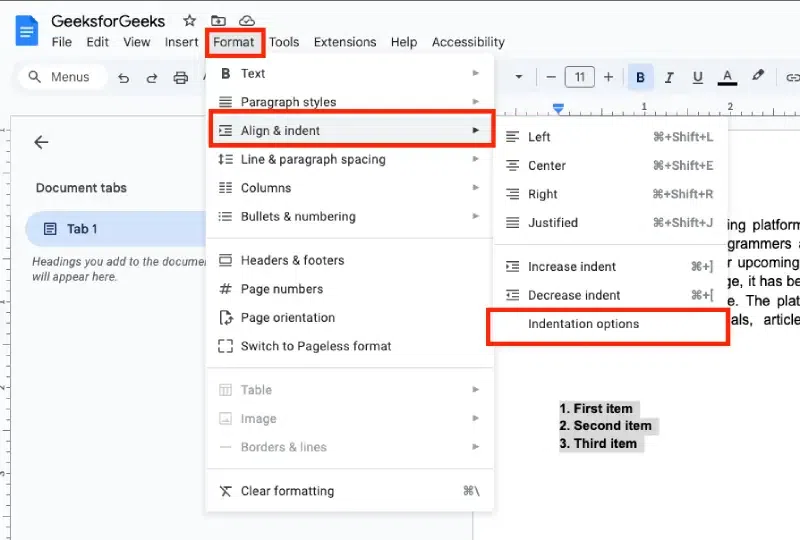
First, highlight the list items. Click the Format option in the top menu, then select Align & Indent. From the dropdown, select Indentation options. In the window that appears, choose the Numbering format option and select a new style (e.g., Roman numerals, alphabetic, etc.).
How to Create a Multilevel Numbered List
Want sub-points under main items? Google Docs lets you nest list items easily.
Step 1: Start a Numbered List
To create a sub-level or nested numbered list (e.g., 1.1, 1.2, etc.). First, place the cursor at the beginning of the item you want to move.
Step 2: Press Tab to Indent
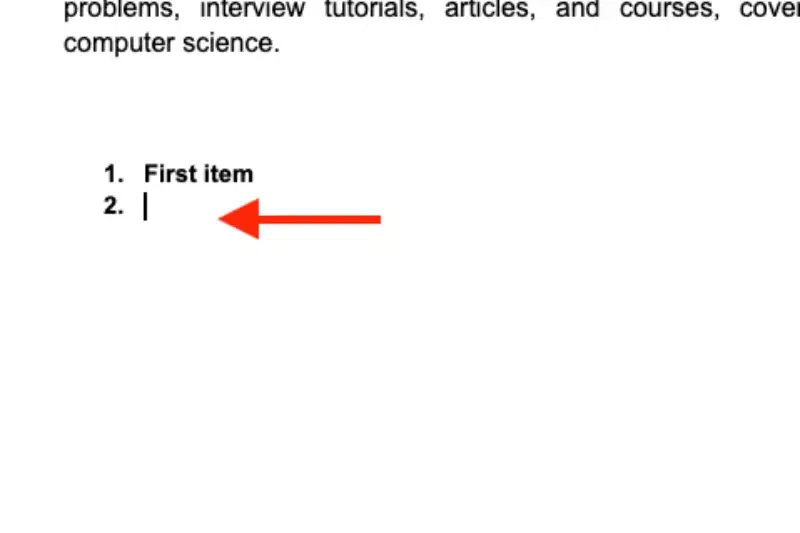
After writing your main point, press Tab on the next item. This creates a sub-level like:
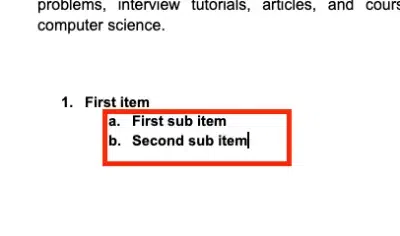
Step 3: Use Shift + Tab to Go Back
To decrease the indent (move back to a higher level), press Shift + Tab.
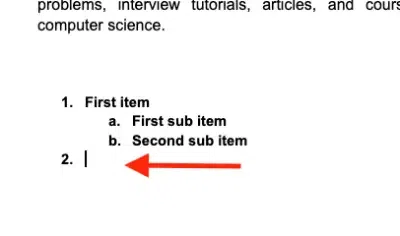
C: Adjust List Formatting
You can change the font size, style, and other formatting options just like any other text in Google Docs. Highlight the numbered list and choose the formatting options from the toolbar. As you can see we increased font size 22 and make colour red:

Note: To return to the main list, press Enter twice.
Step 5: End the List
Once you’ve finished entering your list items, press Enter twice to end the numbered list. If you continue typing, the text will return to normal formatting without numbering.
How to Add a Numbered List in Google Docs (Android)
Google Docs on Android offers the flexibility to create and format lists on the go. Here’s how:
Step 1: Open Google Docs App:
Launch the Google Docs app on your Android phone.
Step 2: Tap Where You Want the List
Tap the area in your document where you want to start the numbered list.
Step 3: Open Format Options
At the top, tap Format (the "A" icon) to open formatting options.

Step 4: Select the Numbered List Icon
Choose the Numbered list option from the list of formatting types.

Step 5: Type Your List
Type the first item in the list and press Enter to add the next item. Continue typing your list.

Step 6: Optional (Indent the List)
If you want to indent an item, tap the Increase indent icon at the bottom of the screen.
How to Add a Numbered List in Google Docs (iPhone & iPad)
Follow these steps to create numbered lists on your iOS device:
Step 1: Open Google Docs App
Launch the Google Docs app on your iPhone or iPad and click pencil icon to start editing.
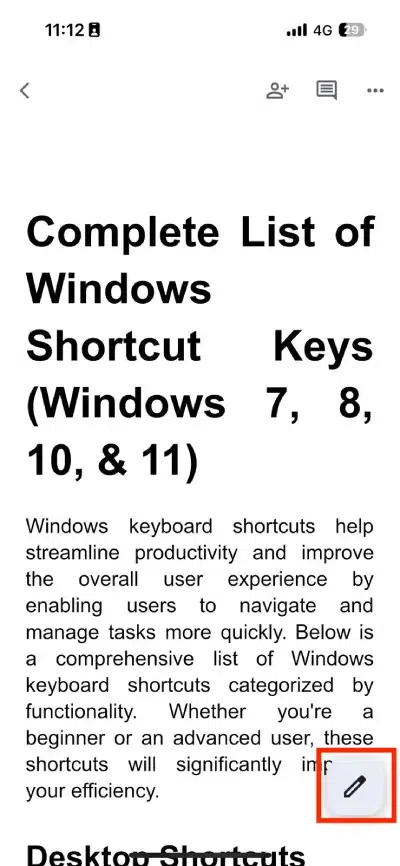
Step 2: Tap Where You Want the List
Tap the area in your document where you want to add the numbered list.
Step 3: Open Format Options
At the top, tap Format (the "A" icon) to open the format options.
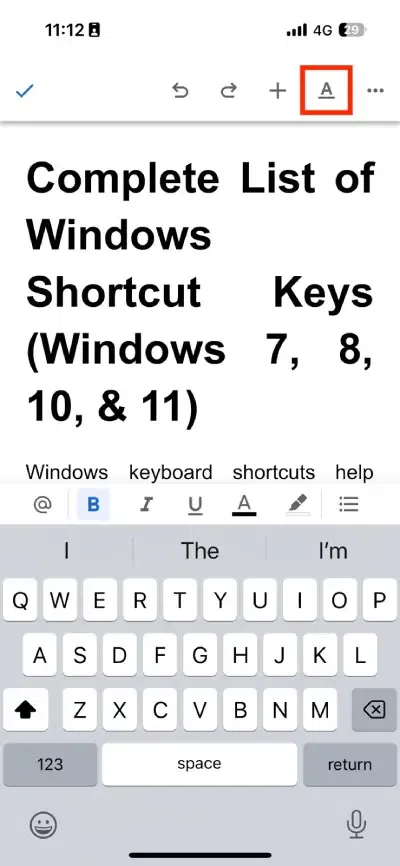
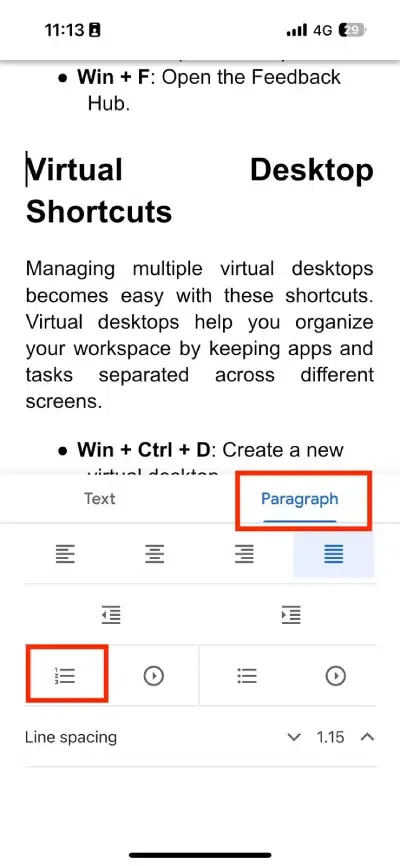
Step 4: Select Paragraph and List Type
Tap Paragraph, then choose the Numbered list option.
Step 5: Type Your List
Type your first list item and press Enter to move to the next number in the list.
Step 6: Optional (Indent the List)
To indent a list item, tap the Increase indent option at the bottom of the screen.
How to Restart Numbering in Google Docs
If you want to restart the numbering at a specific point in your document (e.g., you want the list to start from 1 again), follow these steps:
Step 1: Click on the list
First click on the number list where you want to start new numbering.
Step 2: Right-Click on the Number and Choose "Restart Numbering"
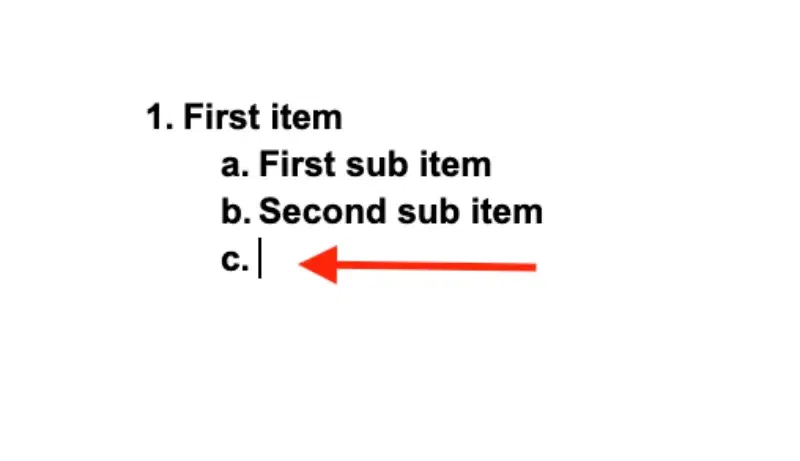
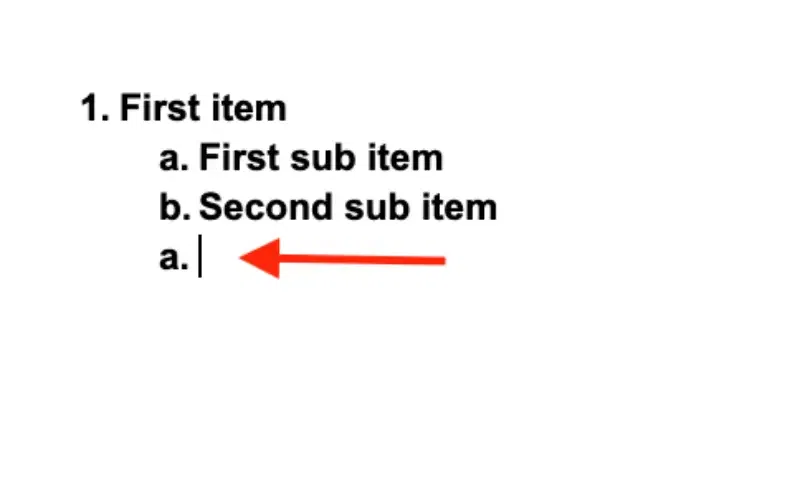
Right-click on the first number of the list where you want to restart the numbering. In the context menu, click Restart numbering. The list will restart from "a".

Step 3: Continue Your List
Now, you can continue your list, and it will start over from "a" again without affecting any previous numbered lists in the document.
How to Customize Numbered Lists in Google Docs
Google Docs allows several formatting options for numbered lists:
- Change number style (1, 2, 3 → a, b, c or i, ii, iii)
- Customize indentation levels
- Restart numbering manually
How to Change Number Format
- Right-click anywhere in the list.
- Select “More bullets” or “List options”.
- Choose a different numbering format.
Troubleshooting: Numbered List Not Working in Google Docs
Here are quick fixes if your numbering seems broken or inconsistent:
- Problem: Numbers don’t auto-increment
Fix: Make sure you're using the built-in numbered list tool, not manually typing numbers. - Problem: Nested numbering doesn’t appear
Fix: Press Tab after entering a main item to trigger a sub-list. - Problem: Format not applying
Fix: Highlight the list → Click the numbered list icon again to reapply formatting.
Conclusion
Adding a numbered list in Google Docs is one of the simplest yet most powerful formatting tools available. Whether you’re outlining a report, documenting steps in a tutorial, or organizing your project tasks, numbered lists improve structure and clarity instantly.
Use shortcuts for speed, customize for style, and troubleshoot formatting to make the most of your Docs workflow.