

Canva is a well-known graphic design application that makes it simple for users to produce eye-catching designs. Resizing your design successfully is essential for creating marketing materials, presentations or social media postings. The steps in this tutorial will help you resize your Canva designs to display beautifully on the all platforms and devices.
What is Canva?
Canva is an online graphic design platform that offers a wide range of tools and templates for the creating professional-quality designs. With its user-friendly interface and extensive library of design elements, Canva is widely used by individuals and businesses for creating marketing materials, social media content, presentations and more.
How to Resize in Canva?
Open Canva and Select a Design > Select the Element You Want to Resize >> Drag to Resize > Manually Input Dimensions > Resize the Entire Design (Canva Pro Feature)
Step 1: Open Canva and Select a Design
- Log in to your Canva account and either open an existing design or start a new one by the selecting the "Create a design" option.
Step 2: Select the Element You Want to Resize
- Click on the element that we want to resize. A bounding box will appear around the selected element with the handles on the corners and sides.
Step 3: Drag to Resize
Resizing by Dragging:
- Click and hold one of the corner handles.
- Drag inwards to make the element smaller or drag outwards to make it larger. To maintain the aspect ratio hold the Shift key while dragging.
Proportional Resize:
- To keep the original proportions intact while resizing simply drag from the corner handle without altering the shape.
Step 4: Manually Input Dimensions
For more precise resizing we can input the exact dimensions:
- Select the element and click the Size box in the top toolbar.
- Manually enter the width and height values.
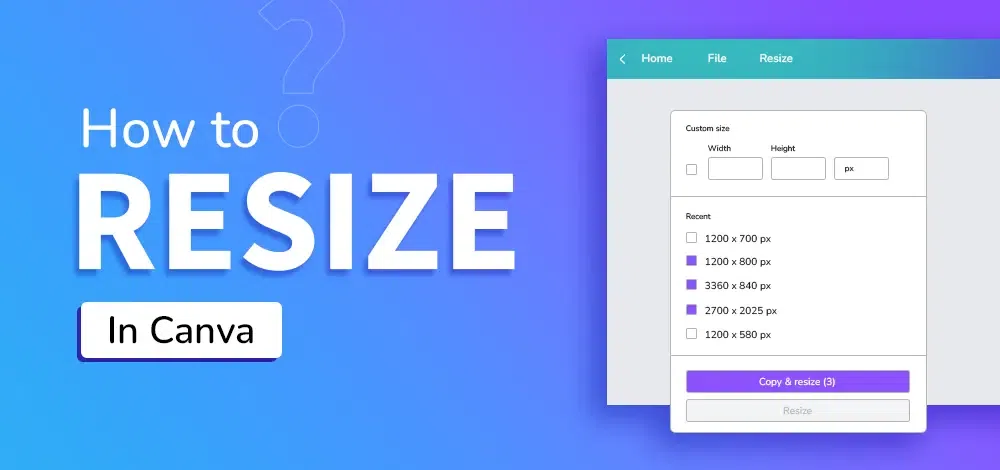
Step 5: Resize the Entire Design (Canva Pro Feature)
If we are using the Canva Pro we can resize the entire design for the different formats:
- Click on the Resize button located in the top menu.
- Select a pre-set dimension or enter custom dimensions.
- Hit Copy & Resize to apply the changes to the new version of the design.
Key Points to Consider
- Aspect Ratio: Maintain the aspect ratio of the design to ensure it doesn’t become distorted.
- Resolution: Ensure that resized designs maintain a high resolution for clarity.
- Alignment: After resizing check the alignment and positioning of the elements to ensure they look balanced.
- Templates: Use Canvas templates for the specific platforms to ensure optimal dimensions and design elements.
Mistakes to Avoid
- Over-resizing: Avoid resizing designs to the excessively large or small dimensions as it can affect the quality.
- Ignoring Aspect Ratio: Don’t change the aspect ratio arbitrarily as it can distort your design.
- Neglecting Text: Ensure that text remains readable and properly aligned after resizing.
Conclusion
Resizing in Canva is a simple process that can greatly enhance the flexibility and effectiveness of your designs. By using Canva’s resizing tools and techniques we can ensure your visuals are optimized for the various platforms and maintain their quality. Always consider aspect ratio and resolution to avoid distortion and ensure a professional finish.