

Improve your writing precision by integrating Grammarly into Microsoft Office on Windows. Whether drafting emails, reports, or presentations, Grammarly offers real-time suggestions to refine grammar, clarity, and tone. This Grammarly setup guide will show you how to incorporate this powerful writing assistant for Microsoft Office, ensuring polished and professional documents.
In this guide, we’ll discuss the benefits of Grammarly, provide a detailed installation walkthrough, and cover troubleshooting tips for smooth integration.
Why Use Grammarly with Microsoft Office
- Helps While You Type: Grammarly works in Word and Outlook to check grammar, spelling, and punctuation as you write.
- Makes Writing Clearer: It suggests better words, fixes awkward sentences, and helps you write clearly and professionally.
- Saves Time: Grammarly quickly finds and corrects mistakes, so you don’t have to spend extra time editing.
- Improves Emails: In Outlook, it ensures your emails are error-free and easy to read.
Grammarly makes it simple to create polished, professional documents and emails.
Step-by-Step Guide to Adding Grammarly to Microsoft Office
To add Grammarly to Microsoft Office on Windows follow the steps given below:
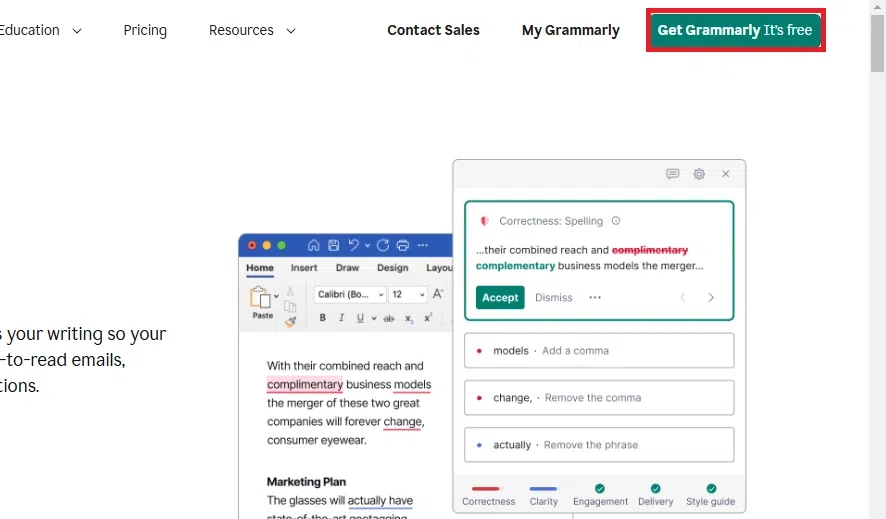
Step 1: Download Grammarly for Microsoft Office
Go to the Grammarly website and download the Grammarly for Microsoft Office installer. Ensure you download it from the official website to avoid any security issues.
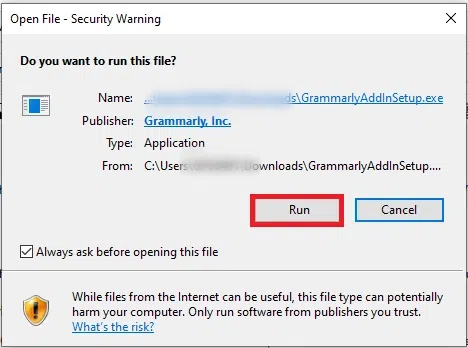
Step 2: Run the Installer
Locate the downloaded file (usually in your "Downloads" folder) and double-click on it. Follow the on-screen instructions to begin the installation process.
Step 3: Choose Office Applications
During installation, you’ll be prompted to choose the applications where you want to use Grammarly. You can select Microsoft Word, Microsoft Outlook, or both. Make your selection and proceed.
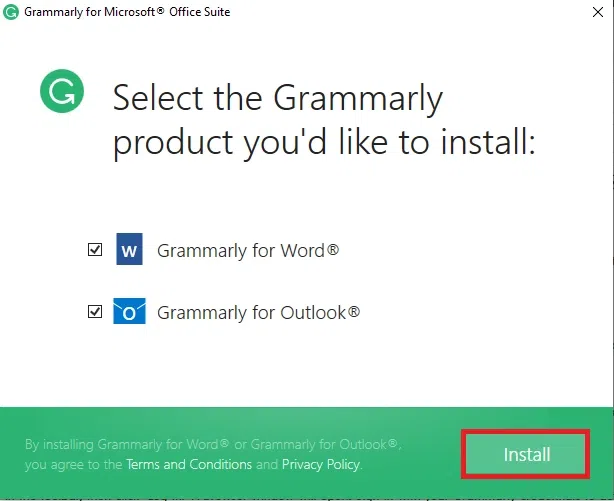
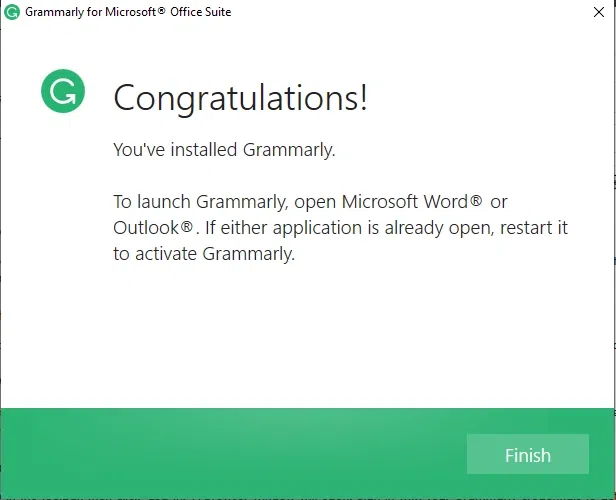
Step 4: Complete the Installation
Click "Install" to begin the installation. Wait for the process to complete, and then click "Finish" when prompted. Restart your computer if required.
Step 5: Open Microsoft Word or Outlook
After installation, open Microsoft Word or Outlook. You should now see a new "Grammarly" tab in the toolbar. If the tab doesn’t appear, restart the application or reinstall the plugin.
Step 6: Log In to Grammarly
Click on the "Grammarly" tab in the toolbar, then click "Log In." A browser window will open. Sign in with your Grammarly credentials to activate the plugin.
Step 7: Start Using Grammarly
Once logged in, Grammarly will start functioning automatically. You’ll see underlined suggestions for grammar, spelling, and style improvements. Customize Grammarly’s settings from the toolbar if needed.
Troubleshooting Grammarly Issues in Microsoft Office
Here are common Grammarly problems in Microsoft Office and how to fix them:
| Issue | Cause | Solution |
|---|---|---|
| Grammarly Tab Missing | Add-in not installed or disabled. | Go to File > Options > Add-ins, enable Grammarly, or reinstall the add-in. |
| Grammarly Not Detecting Errors | Internet connection issues or outdated Grammarly version. | Check your internet connection and update Grammarly to the latest version. |
| Compatibility Issues | Using an unsupported version of Microsoft Office. | Upgrade to Office 2016 or newer, or use the Grammarly desktop app as an alternative. |
| Login Problems | Incorrect credentials or server issues. | Verify your login details and check Grammarly’s status at status.grammarly.com. |
| Slow Performance | Large documents or system resource limitations. | Split the document into smaller sections or restart your computer. |
By addressing these issues, you can ensure Grammarly integrates smoothly with Microsoft Office, enhancing your writing experience.
Also Read:
Conclusion
Integrating Grammarly into Microsoft Office allows you to create clear and professional documents with ease. This Grammarly setup guide provides all the steps needed to start using this helpful writing assistant for Microsoft Office effectively. Follow the guide and enjoy more accurate and impactful writing in your daily tasks.