

Selenium WebDriver is a powerful tool for automating web browsers, and with ChromeOptions, you can customize the browser's behavior to fit your testing needs. One common task during automation testing is downloading files to a specific folder. You can control where files are saved during your automated test runs by setting a default download directory in Selenium Chrome Capabilities.
This can streamline the process and ensure all files are organized in the right location without manual intervention.
Prerequisite
We will be required 3 main things:
- Java Development Kit (JDK) installed.
- Browser Driver (e.g., ChromeDriver for Chrome).
- IDE like Eclipse or IntelliJ IDEA.
Dependencies for Selenium
We will be required to have dependencies for selenium, for that, we will add dependencies in the XML file.
pom.xml
<dependencies>
  <!-- Selenium Java Dependency -->
  <dependency>
    <groupId>org.seleniumhq.selenium</groupId>
    <artifactId>selenium-java</artifactId>
    <version>4.21.0</version>
  </dependency>
</dependencies>
Example
Application.java
import org.openqa.selenium.WebDriver;
import org.openqa.selenium.chrome.ChromeDriver;
import org.openqa.selenium.chrome.ChromeOptions;
import org.openqa.selenium.remote.DesiredCapabilities;

import java.util.HashMap;
import java.util.Map;

public class ChromeDownloadDirectoryExample {

    public static void main(String[] args) {
        // Set the path where you want the files to be downloaded
        String downloadFilepath = "C:\\directory";

        // Set the path where you want the files to be downloaded
        String downloadFilepath = "C:\\test";

        HashMap<String, String> chromePrefs = new HashMap<String, String>();

        //Set download path in the Chrome options
        chromePrefs.put("download.default_directory", downloadFilepath);

        ChromeOptions options = new ChromeOptions();
        options.setExperimentalOption("prefs", chromePrefs);

        // Create WebDriver instance with Chrome options
        WebDriver driver = new ChromeDriver(options);

        // Navigating to Chrome Drvier site to Download chromeDriver
        driver.get("https://storage.googleapis.com/chrome-for-testing-public/129.0.6668.70/win64/chromedriver-win64.zip");

        // Close the driver
        driver.quit();
    }
}
Output
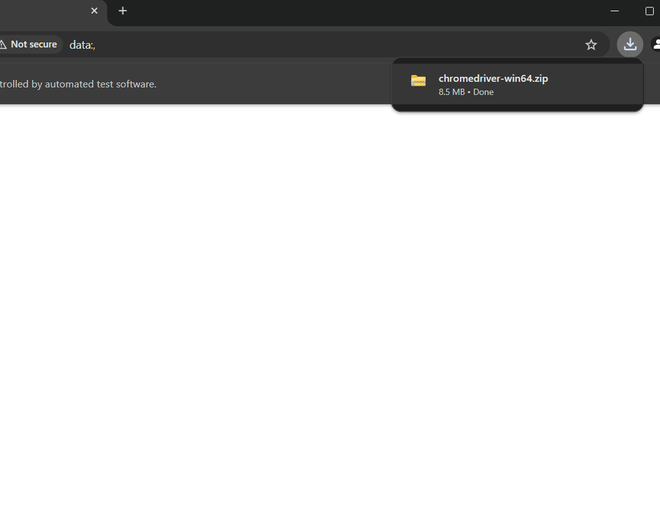
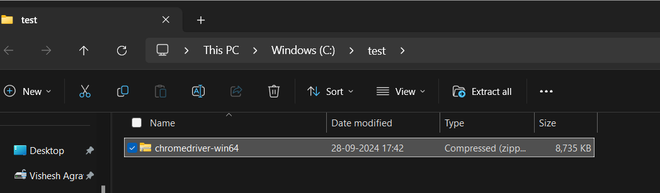
File Downloaded Correctly.
Clicking on the download folder we can find that it is present in the folder we specified
Conclusion
Using ChromeOptions to set a default download directory in Selenium allows you to automate file downloads efficiently during tests. This feature is especially useful when running automated tests that involve downloading files from the web. With this configuration, you can ensure that all downloads are stored in the specified folder, reducing the need for post-download file management.
Selenium WebDriver offers various options to customize browser behavior, making it a versatile tool for automated testing in Chrome and other browsers.