

Postman Environment Setup helps manage API variables such as base URLs, tokens, and request values in one place. It makes API requests reusable, easier to maintain, and convenient to run across different environments like development, testing, and production.
- Stores reusable variables such as base_url, auth_token, and API keys.
- Helps switch quickly between development, staging, and production environments.
- Reduces manual changes in requests and improves API testing efficiency.
Prerequisites for Creating an Environment in Postman
Before creating an environment in Postman, a few basic details should be ready so that environment variables can be configured properly and used in API requests without confusion.
- Postman installed on the system.
- Basic understanding of API requests.
- Required values ready such as base URL, token, or API key
How to Create Environment in Postman
Follow these steps to create an environment in Postman.
Step 1: Open Postman
Open the Postman application on your system. If Postman is not installed, download and install it first, then launch the application to get started.
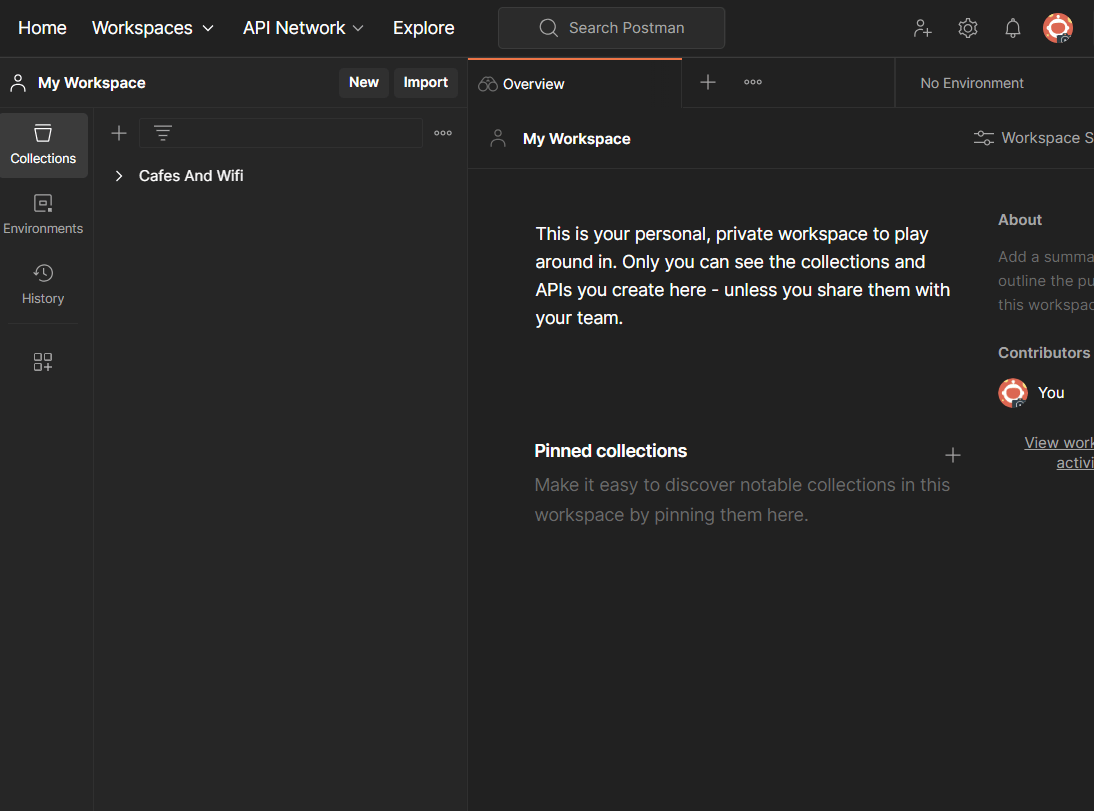
Step 2: Open the Environment Menu
In the top-right corner of Postman, click the No Environment dropdown or the Environment quick look icon to access environment options.
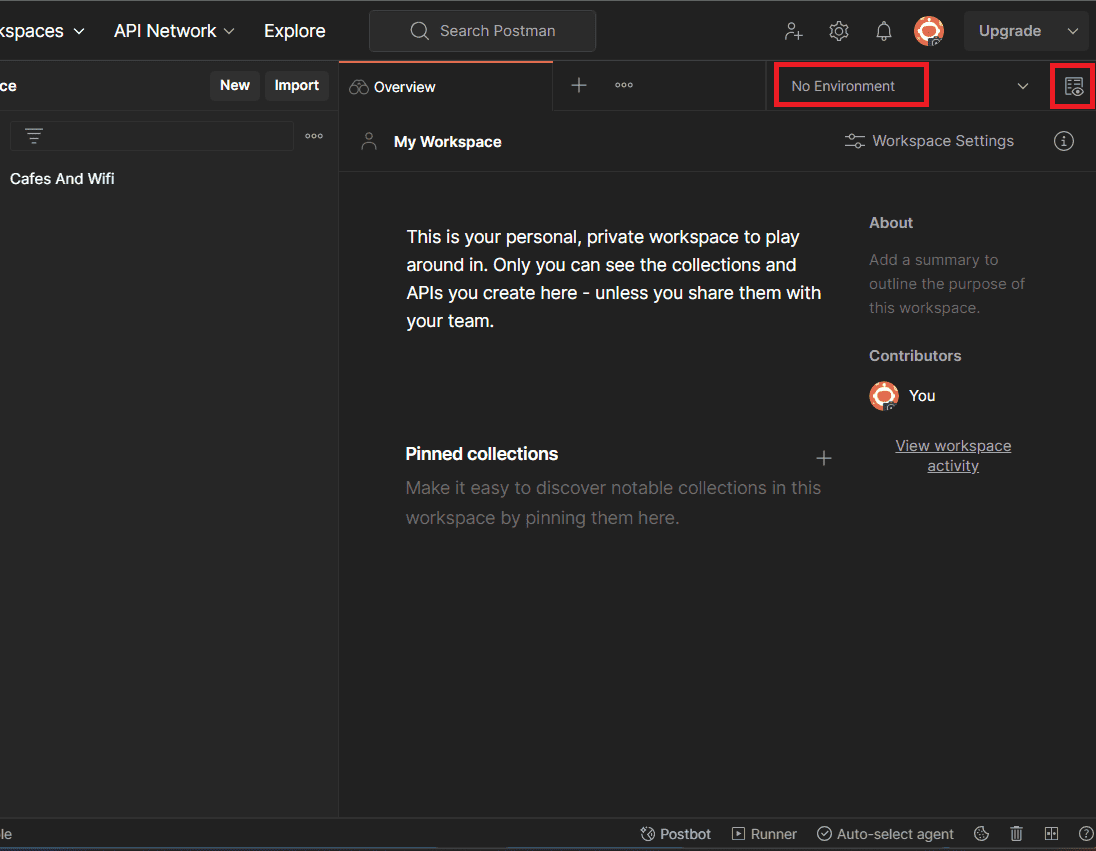
Step 3: Create a New Environment
Click Add in the Environment panel to create a new environment.
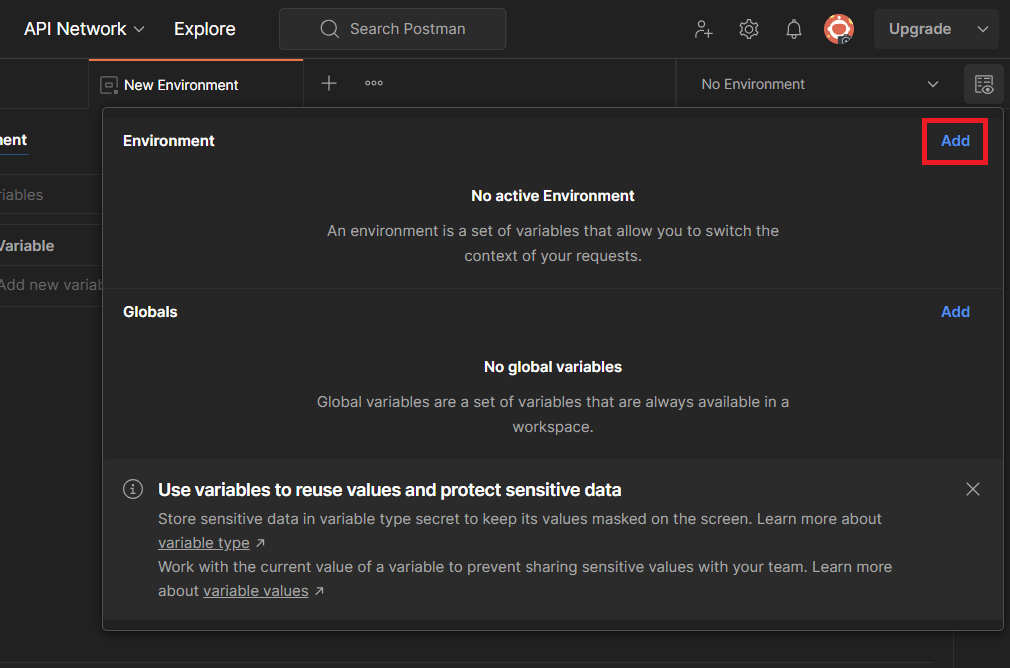
Step 4: Name the Environment
Enter a meaningful name for the environment, such as Development, Testing, or Production.
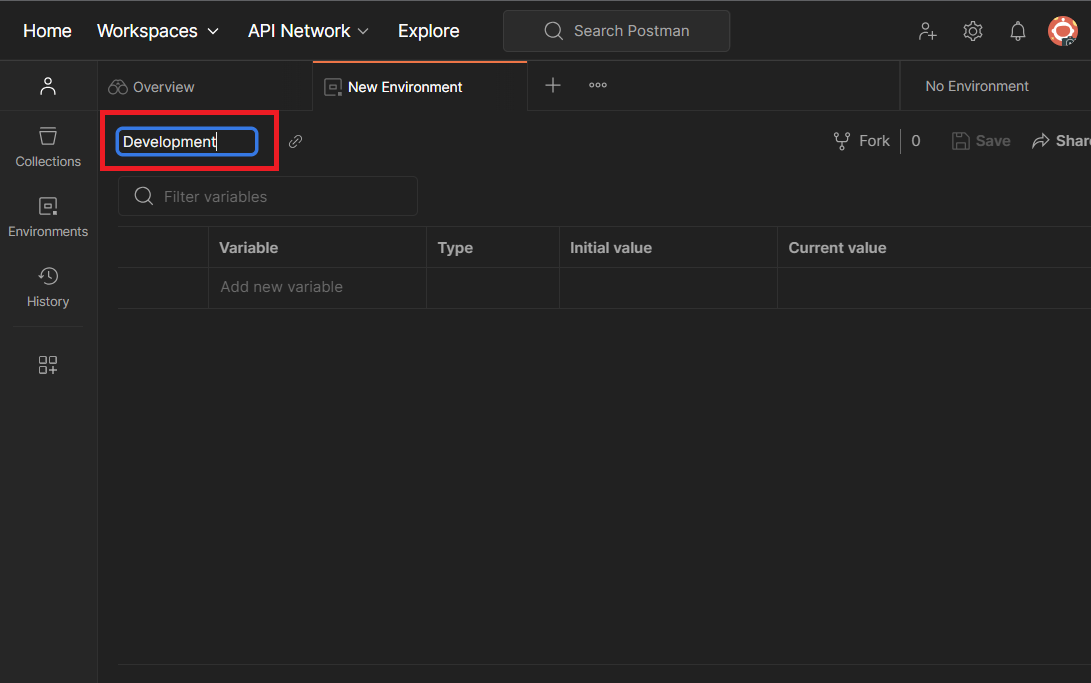
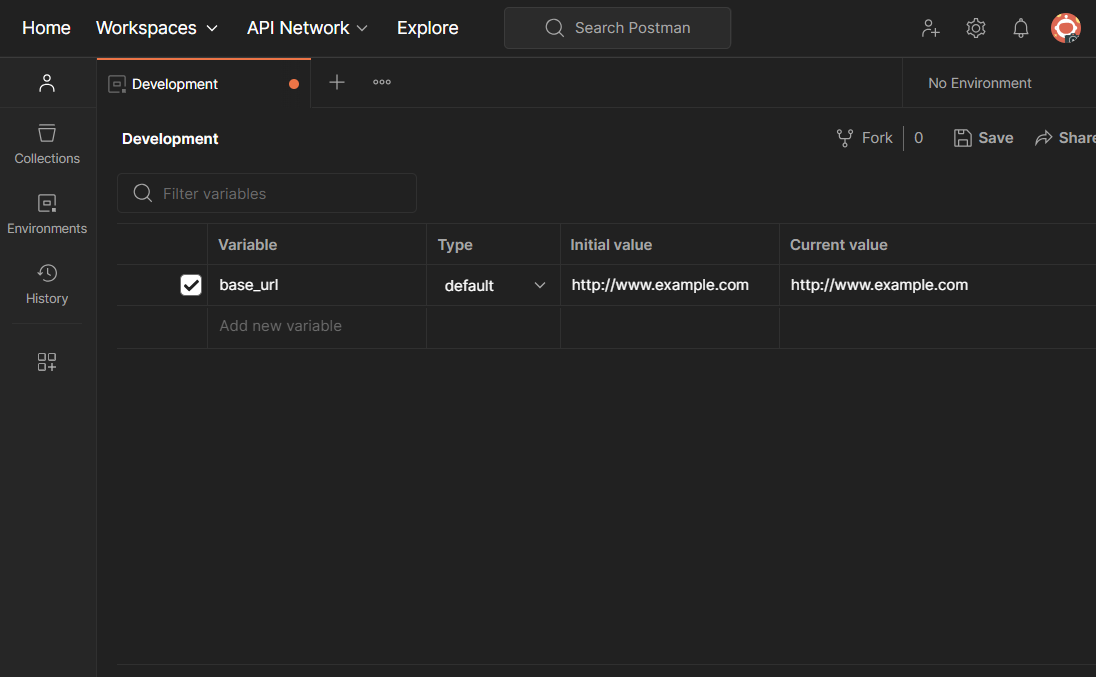
Step 5: Add Environment Variables
After creating the environment, add the required variables that will be used in API requests.
- Variable Name: Name of the variable, such as
base_url,auth_token, oruser_id - Type: Defines the variable type; Text is used for normal values, while Secret is used for sensitive data such as API keys or tokens
- Initial Value: Shared value available when the environment is shared
- Current Value: Local value used only on your machine
Step 6: Save the Environment
Click Save to store the environment and its variables.
Step 7: Select the Active Environment
Choose the created environment from the environment dropdown before sending requests.
Benefits of Using Environments in Postman
Using environments in Postman improves API request management by separating environment-specific values from the request itself. This makes collections easier to reuse, update, and maintain.
- The same API requests can be used across multiple environments without changing them manually.
- Users can quickly switch between development, testing, staging, and production setups.
- Important values such as base URLs, tokens, and IDs can be stored in one place.
- There is no need to update request values repeatedly for different environments.
Common Mistakes to Avoid in Postman Environment Setup
Avoiding common mistakes in Postman environment setup helps ensure that environment variables work correctly and API requests execute without errors.
- Not selecting the active environment before sending requests.
- Using incorrect variable names that do not match the names used in requests.
- Forgetting to save the environment after adding or updating variables.
- Storing sensitive data as plain text instead of using secret variables where needed.
- Using the wrong base URLs or tokens for a specific environment such as development or production.