

Terraform is an Infrastructure as Code (IaC) tool that lets you provision and manage infrastructure across multiple cloud platforms using a single configuration language. It uses provider plugins to interact with services such as AWS, Azure, and Google Cloud.

Install Terraform on Windows
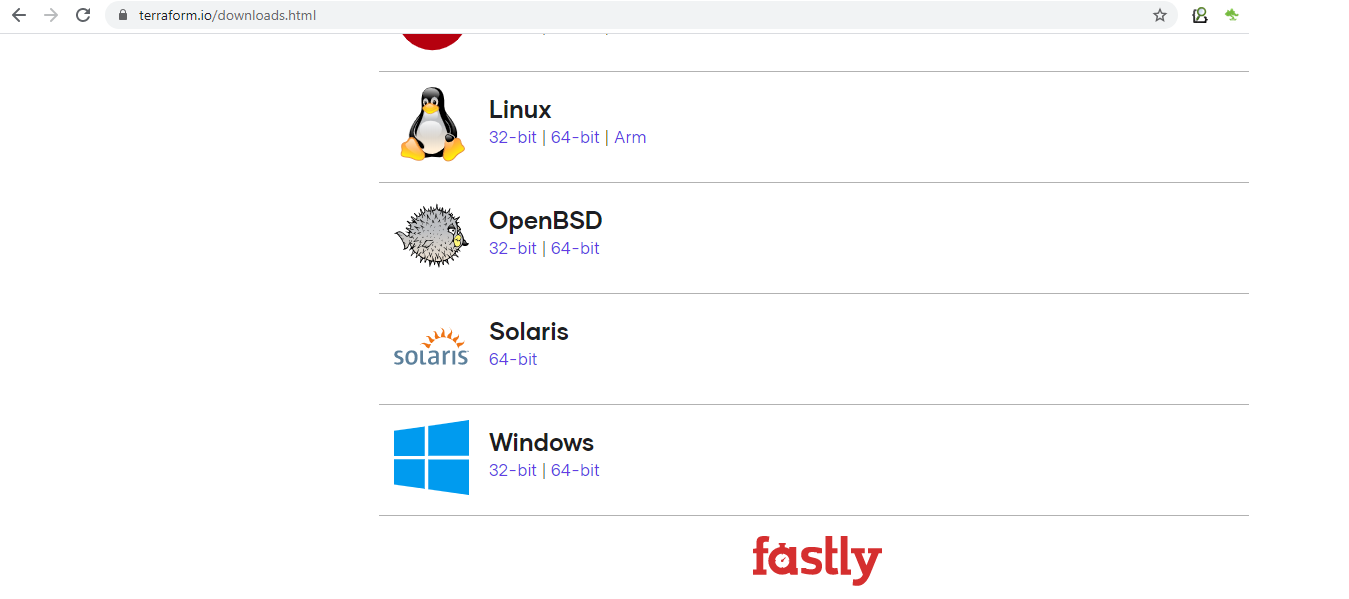
Step 1: Download Terraform
Visit the official HashiCorp Terraform downloads page and download the Terraform executable (terraform.exe) for Windows. Choose the version that matches your system architecture (64-bit or 32-bit).
Step 2: Place Terraform Executable
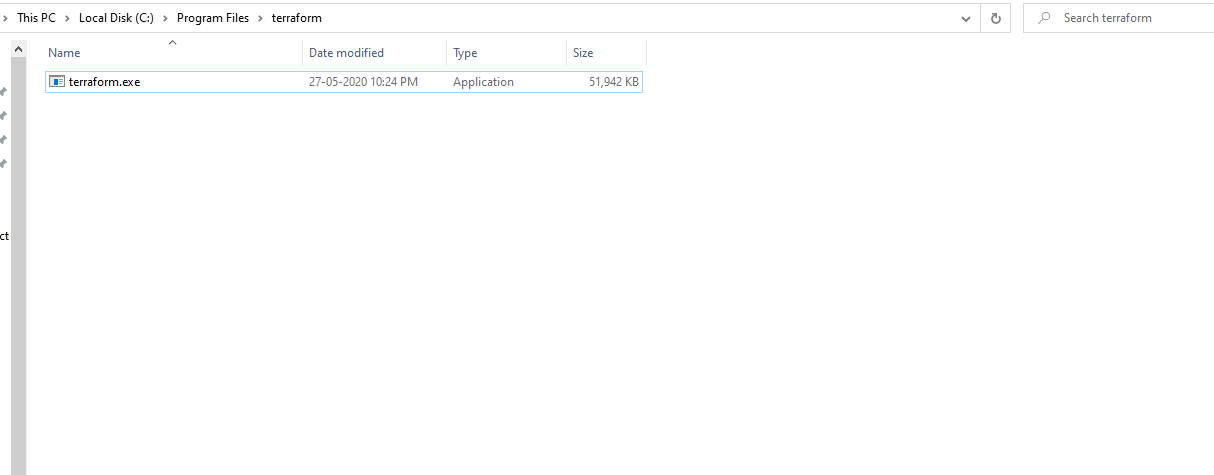
After downloading terraform.exe, open the folder where it was saved and move it to a permanent location on your system, such as C:\Program Files\Terraform. If the folder does not already exist, create it before moving the executable.
Step 3: Add Terraform to the System Path
To run Terraform from any Command Prompt or PowerShell window, add the directory containing terraform.exe to the system PATH.
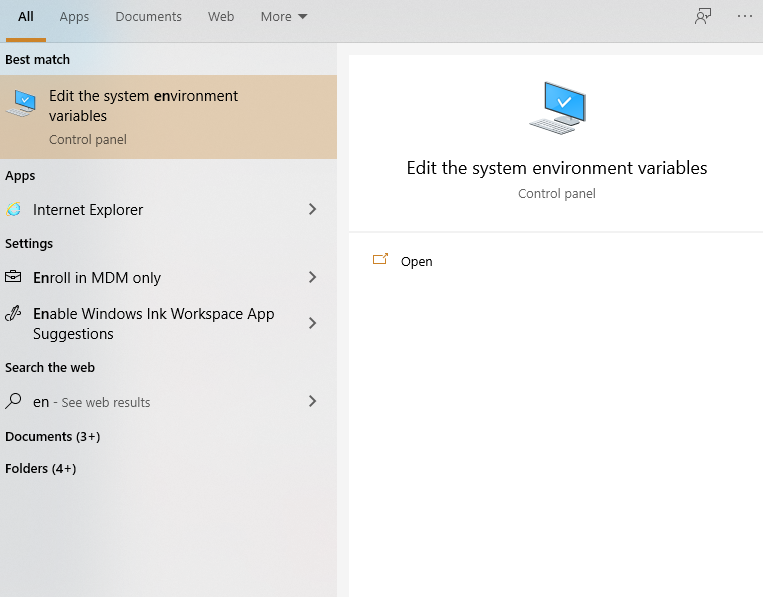
- Open the Start menu and search for Environment Variables.
- Click Edit the system environment variables.
- In the System Properties window, click Environment Variables.
- Under System variables, select Path and click Edit.
- Click New and add the folder where terraform.exe is stored (for example,
C:\Program Files\Terraform). - Click OK to save the changes and close all windows.
Step 4: Verify Terraform Installation
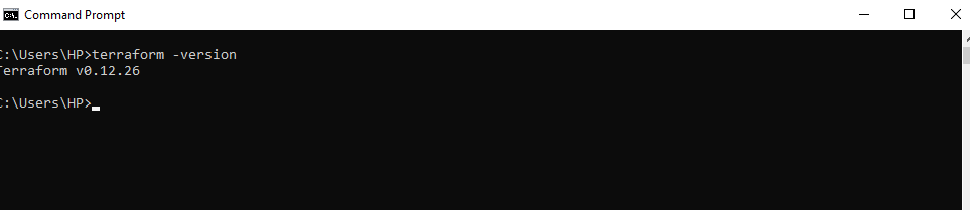
Open a new Command Prompt or PowerShell window and run the following command to verify that Terraform is installed correctly:
terraform --versionIf the installation is successful, Terraform will display the installed version.
Install Terraform on Linux
Step 1: Download the Terraform ZIP File
Download the latest Terraform ZIP file from the official HashiCorp releases page using wget:
wget https://releases.hashicorp.com/terraform/1.14.3/terraform_1.14.3_linux_amd64.zipReplace the version number in the URL with the latest Terraform release if needed.
Step 2: Extract the ZIP File
Extract the downloaded ZIP file and move the Terraform executable to /usr/local/bin/ so it is available system-wide.
sudo unzip terraform_1.14.3_linux_amd64.zip -d /usr/local/bin/If wget or unzip is not installed, install them using your package manager.
For Ubuntu/Debian:
sudo apt install wget unzipFor RHEL/CentOS/Amazon Linux:
sudo yum install wget unzipStep 3: Verify the Terraform Installation
Run the following command to verify that Terraform has been installed successfully:
terraform --versionIf the installation is successful, Terraform will display the installed version.
Install Terraform on Ubuntu
For a detailed installation guide, see our article on How to Install Terraform on Ubuntu.
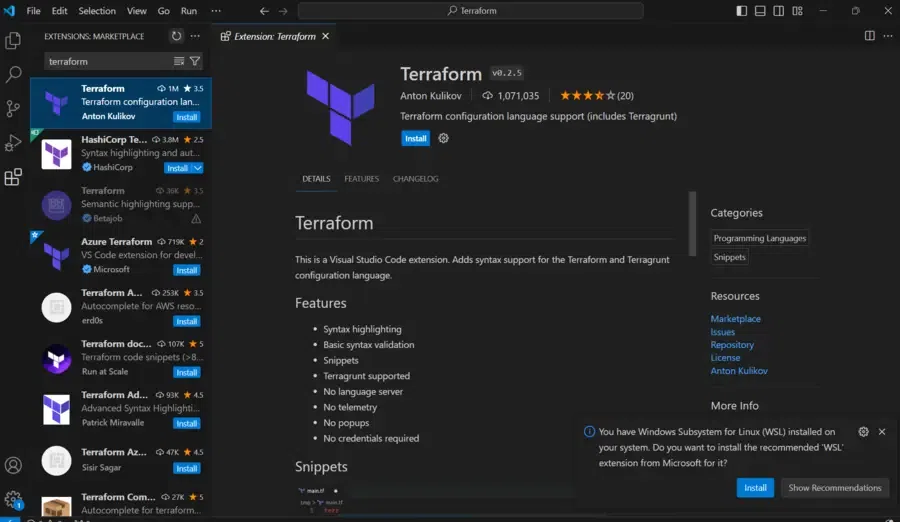
Installing Terraform Extension on Visual Studio Code
- Open Visual Studio Code.
- Open the Extensions view by clicking the Extensions icon in the sidebar or pressing Ctrl + Shift + X (Windows/Linux) or Cmd + Shift + X (macOS).
- Search for Terraform in the Extensions Marketplace.
- Select the official Terraform extension published by HashiCorp.
- Click Install.
- If prompted, reload Visual Studio Code to activate the extension.
- Verify that the extension appears in the list of installed extensions.
Optional: You can customize the extension settings by navigating to File > Preferences > Settings (Windows/Linux) or Code > Settings (macOS) and searching for Terraform.
Install Terraform on MacOS
Step 1: Create a Directory for Terraform
Create a directory to store the Terraform binary:
sudo mkdir -p /opt/terraformStep 2: Navigate to the Directory
Move to the newly created directory:
cd /opt/terraformStep 3: Download the Terraform ZIP File
Visit the official Terraform Downloads page, copy the download link for the macOS version, and download it using curl:
curl -O <terraform_download_link>Step 4: Extract the ZIP File
Extract the downloaded ZIP file:
unzip <file_name>.zipThis extracts the Terraform binary into the current directory.
Step 5: Add Terraform to the PATH
Open your shell profile (such as ~/.bash_profile or ~/.zshrc) and add the Terraform directory to the PATH:
export PATH="/opt/terraform:$PATH"Save the file, then apply the changes:
source ~/.bash_profileNote: If you're using zsh (the default shell on recent macOS versions), replace
~/.bash_profilewith~/.zshrc.
Step 6: Verify the Installation
Run the following command to verify that Terraform is installed correctly:
terraform --versionIf the installation is successful, the installed Terraform version will be displayed.