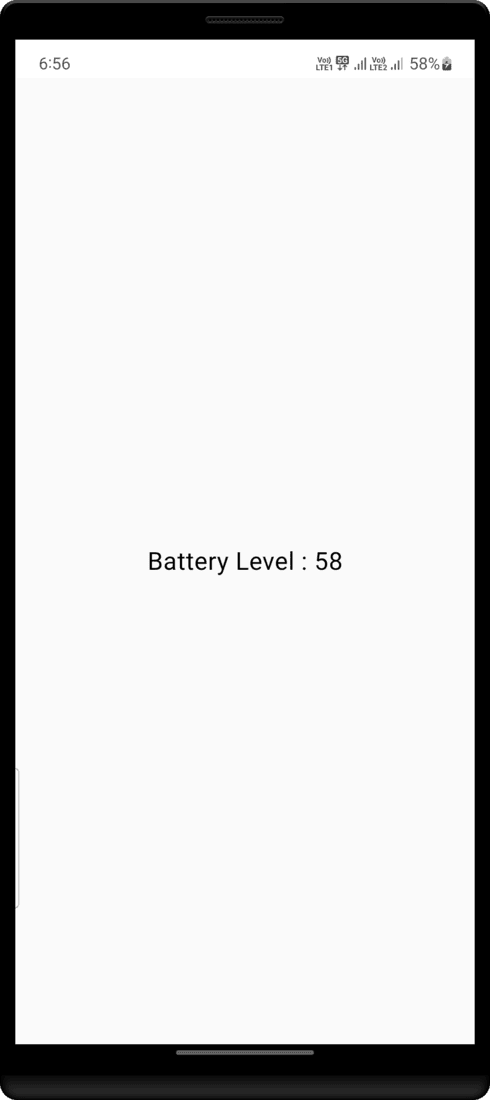
Many times while building an android application if we have to run specific features within our android application we have to check the battery level of our android device. In this article, we will take a look at How to Check Battery Level in Android using Jetpack Compose.
Step by Step Implementation
Step 1: Create a New Project in Android Studio
To create a new project in the Android Studio, please refer to How to Create a new Project in Android Studio with Jetpack Compose.
Step 2: Working with the MainActivity.kt file
Go to the MainActivity.kt file and refer to the following code. Below is the code for the MainActivity.kt file. Comments are added inside the code to understand the code in more detail.
MainActivity:
package com.geeksforgeeks.demo

import android.content.Context
import android.content.Context.BATTERY_SERVICE
import android.os.*
import androidx.activity.ComponentActivity
import androidx.activity.compose.setContent
import androidx.compose.foundation.layout.*
import androidx.compose.material3.Text
import androidx.compose.runtime.Composable
import androidx.compose.ui.*
import androidx.compose.ui.platform.LocalContext
import androidx.compose.ui.unit.*
import com.geeksforgeeks.demo.ui.theme.DemoTheme

class MainActivity : ComponentActivity() {
    override fun onCreate(savedInstanceState: Bundle?) {
        super.onCreate(savedInstanceState)
        setContent {
            DemoTheme {
                GetBatteryLevel(LocalContext.current)
            }
        }
    }
}

@Composable
fun GetBatteryLevel(context: Context) {
    Column(
        modifier = Modifier
            .fillMaxSize()
            .padding(all = 30.dp),
        horizontalAlignment = Alignment.CenterHorizontally,
        verticalArrangement = Arrangement.Center,
    ) {
        // Call battery manager service
        val batteryManager = context.getSystemService(BATTERY_SERVICE) as BatteryManager

        // Get the battery percentage and store it in a INT variable
        val batteryLevel: Int = batteryManager.getIntProperty(BatteryManager.BATTERY_PROPERTY_CAPACITY)

        // text to display battery level.
        Text(
            text = "Battery Level : " + batteryLevel,
            fontSize = 20.sp
        )
    }
}
Output: