

Static malware analysis focuses on examining a suspicious file without executing it, making it a safe and controlled approach for initial threat assessment. By analyzing the file’s structure, code patterns and embedded resources, security professionals can uncover valuable insights about its purpose origin and potential impact without risking system compromise.
- File structure examination: Analyzes headers, metadata and binary composition to detect anomalies.
- Code and signature inspection: Identifies known malicious patterns, strings and signatures.
- Detection of Indicators of Compromise (IOCs): Extracts hashes, IPs, domains and other artifacts.
- Supports dynamic analysis: Acts as a preliminary step before runtime behavior analysis.
- Reverse engineering capabilities: Enables deeper inspection using disassemblers and decompilers.
Steps in Static Malware Analysis
Static malware analysis follows a structured approach to safely examine suspicious files without executing them. Each step is designed to progressively reveal important details about the file’s structure, origin and potential behavior.
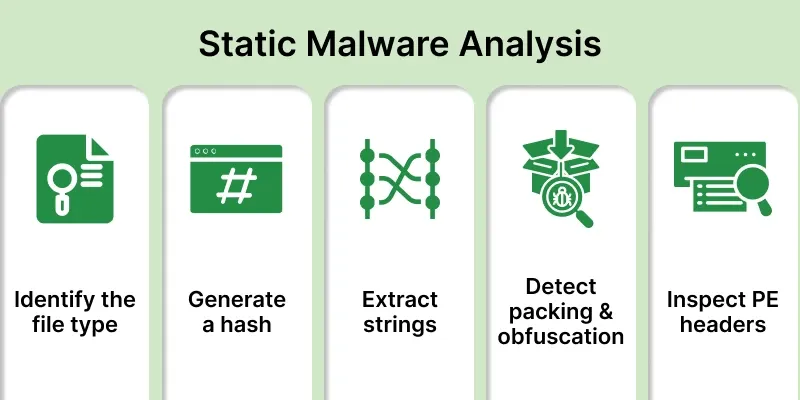
1. Identify the file type
The first step is to check the file’s format (e.g., .exe, .dll, .docm) and architecture (32-bit or 64-bit), Verify magic bytes (e.g., MZ for Windows PE). This tells us the target operating system and gives context about how the file might behave.
- Determines whether the file is an executable, script, document or library.
- Helps identify the operating system compatibility and execution environment.
- Reveals suspicious file extensions or disguised malware attempting to mimic legitimate files.
2. Generate a hash of the malware
Creating a hash (like MD5, SHA-1 or SHA-256) gives the malware sample a unique fingerprint. This allows us to check online databases (like VirusTotal) to see if the file has already been analyzed, saving time and effort.
- Enables quick identification of previously analyzed malware samples.
- Supports integrity verification to detect file modifications or tampering.
- Assists in threat intelligence correlation and malware family classification.
3. Extract and analyze strings
Using tools like the strings command, we can pull out readable text from the binary. This may reveal URLs, IP addresses, function names, commands or other clues about what the malware is designed to do.
- Exposes hardcoded URLs, IP addresses, registry keys and commands.
- Helps identify attacker infrastructure such as domains or email addresses.
- Reveals programming artifacts, debug paths or embedded malware capabilities.
4. Detect packing and obfuscation
Malware authors often use packers or obfuscation techniques to hide code and avoid detection. By identifying if the file is packed (e.g., UPX), analysts may need to unpack or deobfuscate it to uncover hidden instructions.
- Indicates whether the malware payload is compressed or encrypted.
- Helps analysts determine if unpacking or deobfuscation is required.
- Suggests advanced evasion techniques commonly used by sophisticated malware.
5. Inspect PE headers (for Windows executables)
Portable Executable (PE) headers contain structured metadata about the program - like imported functions, libraries and entry points. Analyzing these headers helps us understand how the malware interacts with the operating system.
- Identifies imported Windows APIs used for malicious activities.
- Reveals suspicious sections, abnormal permissions or hidden payloads.
- Helps trace execution flow and detect anti-analysis techniques.
Indicators in Static Malware Analysis
In static malware analysis, Indicators are crucial pieces of data that provide evidence of a security breach. Since static analysis doesn't involve running the malware, the analyst extracts these indicators directly from the file's code and metadata.
- File Identity: File extension is compared with the magic number to ensure the format is genuine. Attackers often disguise executables by renaming them to harmless formats like documents or images.
- PE/ELF Headers: Executable headers contain details like timestamps, entry points and section names. Suspicious timestamps, unusual entry points, strange section names or large overlays.
- Imports / API Calls: The imported functions of a binary reveal its intended behavior. Networking APIs may point to communication features, process or VM-related APIs suggest manipulation or evasion.
- Exports / Resources: Exports may allow interaction with other components, while resources often contain icons, manifests, certificates or even hidden executables.
- Strings: Readable strings may expose URLs, IP addresses, registry keys, file paths or encoded payloads. These artifacts are valuable for identifying infrastructure, persistence and hidden data.
- Embedded Files / Data: Executables sometimes carry additional content like encrypted binaries, scripts or certificates. Such embedded material often extends functionality or hides secondary payloads.
- Obfuscation / Packing: Packed or encrypted files often show high entropy, unusual section names or known packer signatures. These techniques are commonly used to conceal malicious logic.
- Cryptography: Presence of cryptographic routines, keys or algorithm patterns indicates encryption for payloads or communication. Hardcoded keys or crypto API usage may reveal controlled data protection inside the malware.
- YARA Hits / Signatures: YARA scanning can quickly match files against known malware patterns. Signature hits help link the sample to existing families or campaigns.
Tools Used in Static Malware Analysis
Static malware analysis relies on a variety of specialized tools, each designed to perform a specific task in the process of dissecting a malicious file without executing it. Here is a breakdown of the key tools used, categorized by their function:
1. Hex Editor
- A free hex editor that allows you to view and edit raw binary data of files.
- Analysts use it to inspect file headers, look for hidden code and analyze suspicious patterns at the byte level. For example, you can check whether an .exe really starts with the MZ header (indicating a Windows executable).
2. Exeinfo PE
- A tool that analyzes Windows PE (Portable Executable) files.
- It retrieves detailed PE header information.
- Detects whether the executable is packed or obfuscated.
- Identifies the packer version and sometimes provides hints on how to unpack it.
- Since malware often uses packing to hide malicious code, this tool helps analysts know if unpacking is required before deeper inspection.
3. PEStudio
- A powerful static analysis tool for Windows executables.
- Extracts imports, exports, libraries, file metadata, digital signatures, indicators of compromise and highlights suspicious API calls like keylogging, network communication or privilege escalation.
- Gives a quick overview of what the program might do without running it.
4. CFF Explorer
- CFF Explorer lets you examine and modify Portable Executable (PE) headers, sections, resources and dependencies.
- It is useful for unpacking executables and exploring their internal structure.
- It helps analysts understand how malware operates and interacts with the operating system.
Example for File Identification and Properties
1. PeStudio
PeStudio is an important tool for analyzing Windows executable files without running them.
- Open the suspicious .exe file in PeStudio.
- It automatically displays details like imported DLLs, API calls, version info, digital signature and file indicators.
- Look at the “Indicators” tab to see potential red flags (e.g., suspicious APIs, hidden data or network calls).
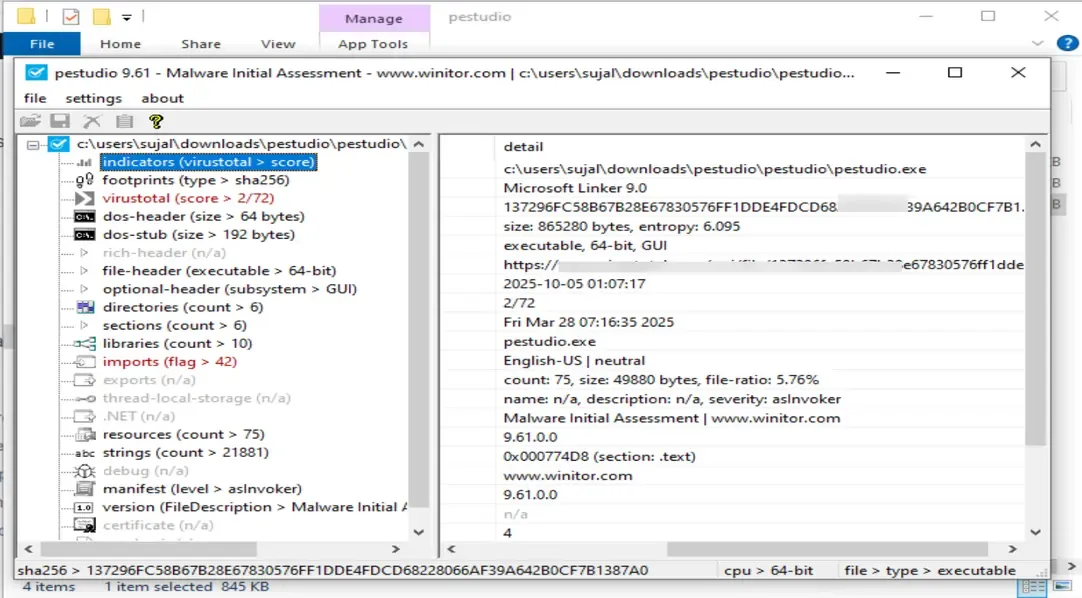
- The “Strings” section helps spot URLs, IPs or commands embedded inside the binary.
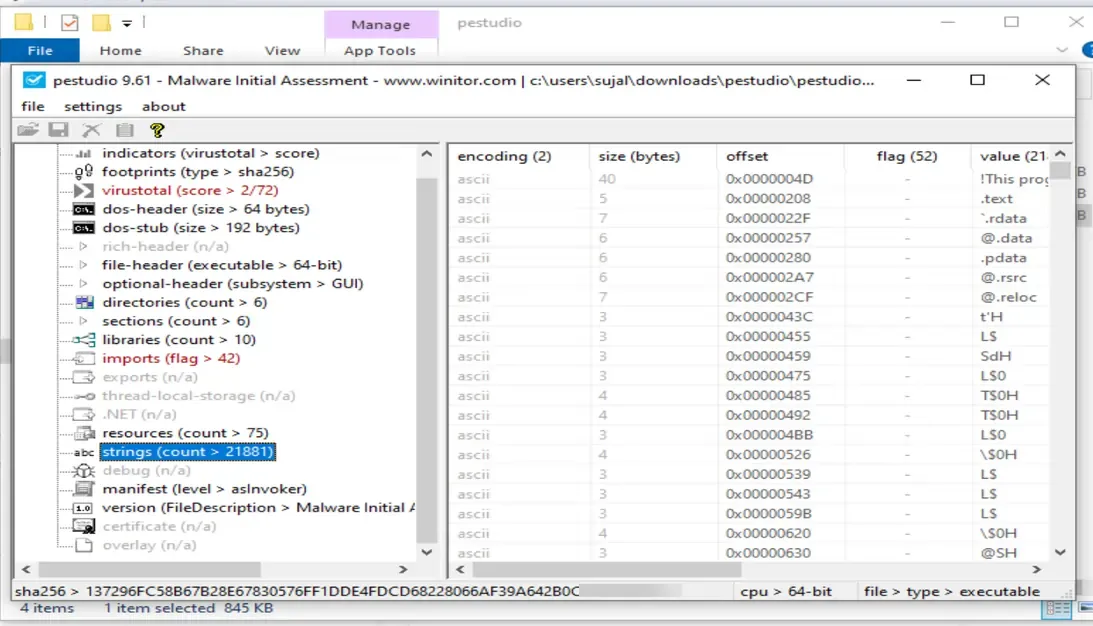
It gives a quick overview of a file’s structure and suspicious behavior indicators before deeper analysis.
2. PEview
PEview is a lightweight utility to manually inspect the structure of Portable Executable (PE) files.
- Open the .exe or .dll file to view its internal headers.
- Navigate through sections like DOS Header, File Header and Optional Header.
- Check fields like TimeDateStamp, EntryPoint and NumberOfSections, anomalies here may indicate file manipulation or packing.
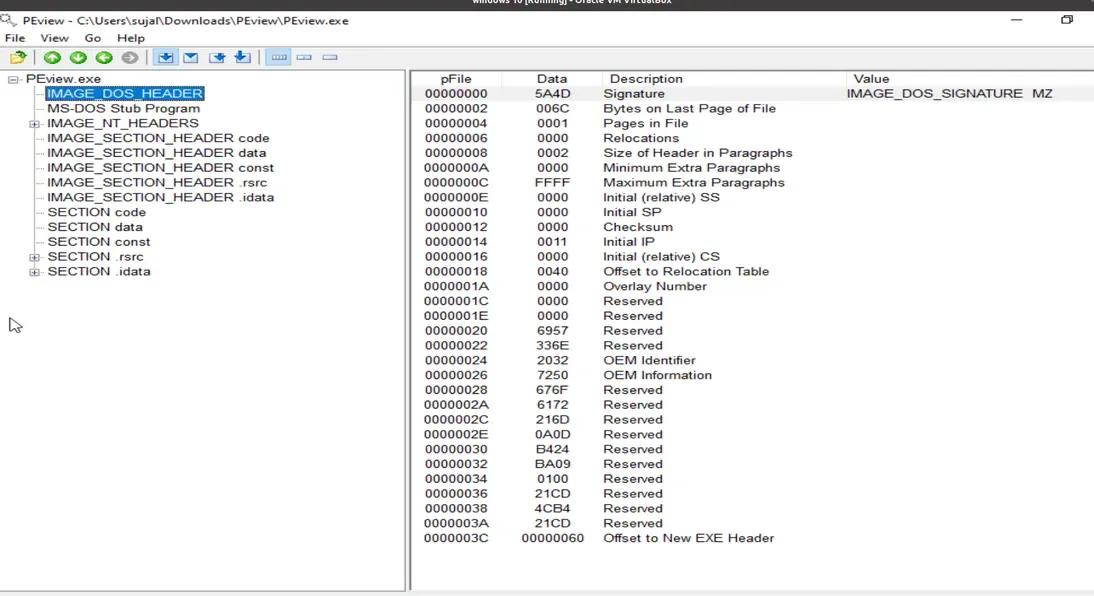
- It helps analysts manually confirm metadata and detect unusual values that may be hidden by packers.