

Embedded metadata and resources in executable files include non-code data such as version info, publisher details and embedded assets like icons or dialogs. In cybersecurity, examining these elements helps evaluate software legitimacy and uncover signs of tampering or malicious alteration.
Embedded Metadata
Executable files contain hidden information called metadata that goes beyond the file name. It records basic details about the software such as origin, version and identity. Common Metadata Fields:
- Company Name: Identifies the developer or organization that created the software.
- Product Name: Specifies the official name of the application or program.
- File Description: Describes the purpose or functionality of the file.
- Version Number: Indicates the release or build version of the software.
- Legal/Copyright Information: Defines ownership and usage rights.
Embedded Resources
Executable files contain embedded resources such as icons, images, menus and dialog boxes that support the program’s user interface. These elements are stored within the file itself and can provide clues about the software’s origin and legitimacy. Some common types of embedded resources:
- Icons: Represent the file in Windows Explorer or on shortcuts.
- Dialog boxes and menus: UI elements used by the software.
- Images and cursors: Graphics used inside the program.
- Strings: Hidden text, messages or instructions embedded in the program.
Detecting Anomalies in Metadata
Suspicious metadata, including fake publishers, missing version details, invalid copyright information or abnormal embedded resources, can indicate malware or file manipulation.
- Timestamp Inconsistencies: Compile, creation and modification timestamps are illogical or indicate timestomping.
- Packed or Obfuscated Resources: Metadata or resources suggest the file has been packed or obfuscated to evade detection.
- PE Header Inconsistencies: Invalid or mismatched PE header fields (e.g., checksum, section names, entry point).
- Digital Signature Anomalies: Missing, invalid, expired or revoked code-signing certificates.
Tools for Inspecting Executables
To check a file’s metadata, icons and digital signatures, you can either write programs/scripts or use specialized tools designed for file inspection. Some popular tools for hands-on inspection include:
1. Resource Hacker
Resource Hacker is a tool used to open executable files and view embedded resources such as icons, dialogs and version information.
- It helps analysts identify unusual or suspicious resources inside an application that may indicate tampering or hidden components.
- The tool also supports command-line usage, allowing users to extract or modify resources through commands.
- Portable version available: it can be used without installation by simply unzipping the file and running ResourceHacker.exe.
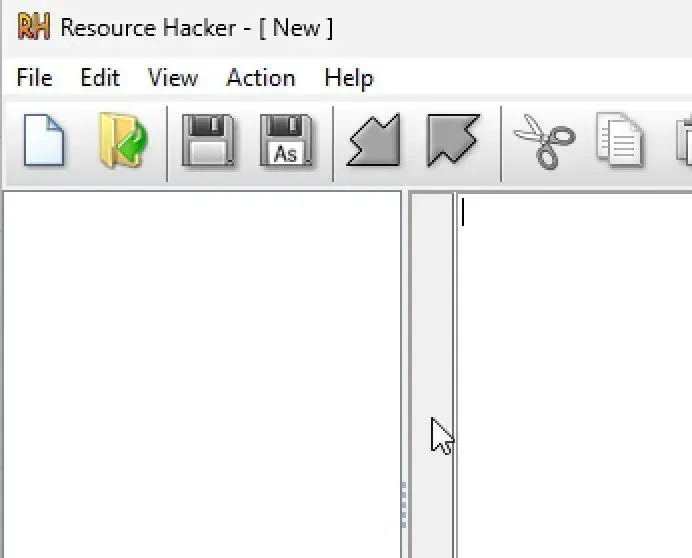
Steps to use Resource hacker
- Step 1(Open Resource Hacker): Launch the
ResourceHacker.exefile (no installation needed if using the portable version). - Step 2(Load the Executable File): Go to File -> Open and select the
.exefile you want to inspect. - Step 3(Explore the Resource Tree): On the left, you’ll see different sections like ICON, DIALOG, VERSION INFO, etc. Click through these to view embedded icons, dialogs and version information.
- Step 4(Check Version Info Carefully): Look under the VERSION INFO tab for company name, product name, version number and copyright.
- Step 5(Look for Unusual Resources): Check for strange icons, extra dialogs or unfamiliar text entries these can be signs of tampering.
2. EXEinfo PE
Exeinfo PE is a lightweight tool used to analyze executable files and reveal important details such as file structure, compiler information, metadata and digital signatures.
- Identifies file type, compiler and basic metadata
- Detects packing, compression or obfuscation techniques
- Checks presence and validity of digital signatures
- Helps spot suspicious or inconsistent file structure
Installation:
- Download Exeinfo PE from a trusted source (it is typically distributed as a portable .zip file).
- Extract the contents to a folder.
- Run ExeinfoPE.exe (no installation is required).
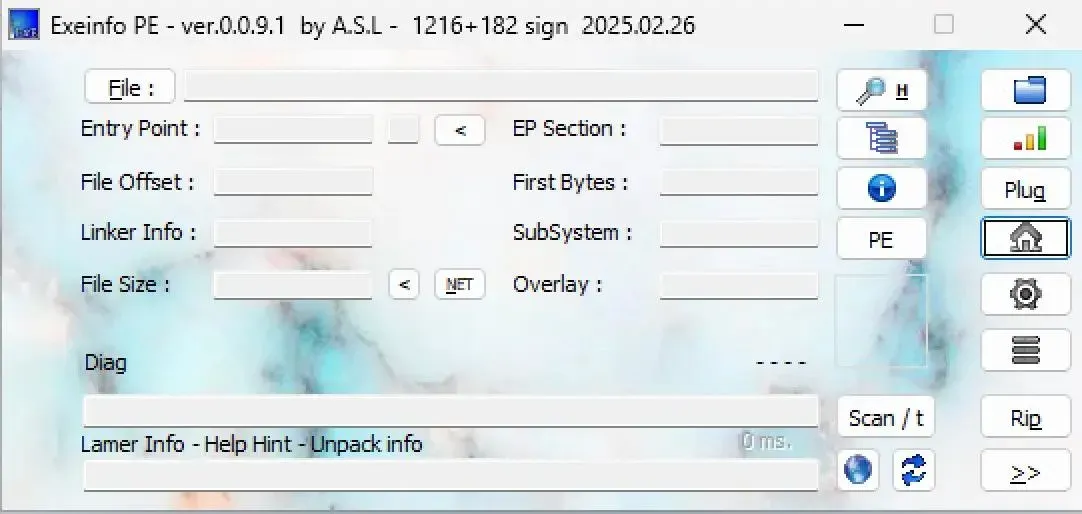
Steps to use Exeinfo PE
- Step 1(Load the Executable File): Drag and drop the target
.exefile into the tool or use File -> Open. - Step 2(View File Details): The main window displays information such as file type, compiler, packing methods, digital signatures and metadata.
- Step 3(Check the Certificate Section): Inspect the digital signature area to determine whether the file is signed and whether the signature is valid or suspicious.
- Step 4(Analyze Metadata): Review details for signs such as fake company names, missing version information or unusual entries.
- Step 5(Detect Packing or Obfuscation): EXEinfo PE can detect if the file is packed or encrypted, which is often used by malware to hide malicious code.